

Savorsync Grocery Auto-fill Export CSV Guide (2026)
Alex the juice queen
Alex hunts for the best juice bars and presses. She rates every sip and saves her favorites in Savor.
SavorSync Mastery: From Restaurant Memories to Actionable Grocery Intelligence Picture this: your phone's camera roll is a graveyard of 2,000+ food photos....
SavorSync Mastery: From Restaurant Memories to Actionable Grocery Intelligence
Picture this: your phone's camera roll is a graveyard of 2,000+ food photos. Every vacation meal, every date-night pasta, every spontaneous coffee shop discovery - beautifully captured, completely unsearchable, and functionally useless when you're standing in the grocery store wondering what to make for dinner. You remember that incredible Thai curry you photographed in Bangkok six months ago, but you can't recall the exact ingredients, and you certainly didn't save the recipe. The photo exists. The memory exists. The ability to actually cook it? Lost.
This isn't a storage problem. It's a utility problem. The average food enthusiast takes 200-300 food photos per year, according to the Savor App Blog (2026), but fewer than 5% of those images ever become actionable kitchen intelligence. SavorSync's AI-powered grocery auto-fill and CSV export system was built to close that gap - to transform your passive photo archive into an active culinary database that you own, control, and leverage for everything from weekly meal planning to building a personal flavor encyclopedia.
Key Takeaways
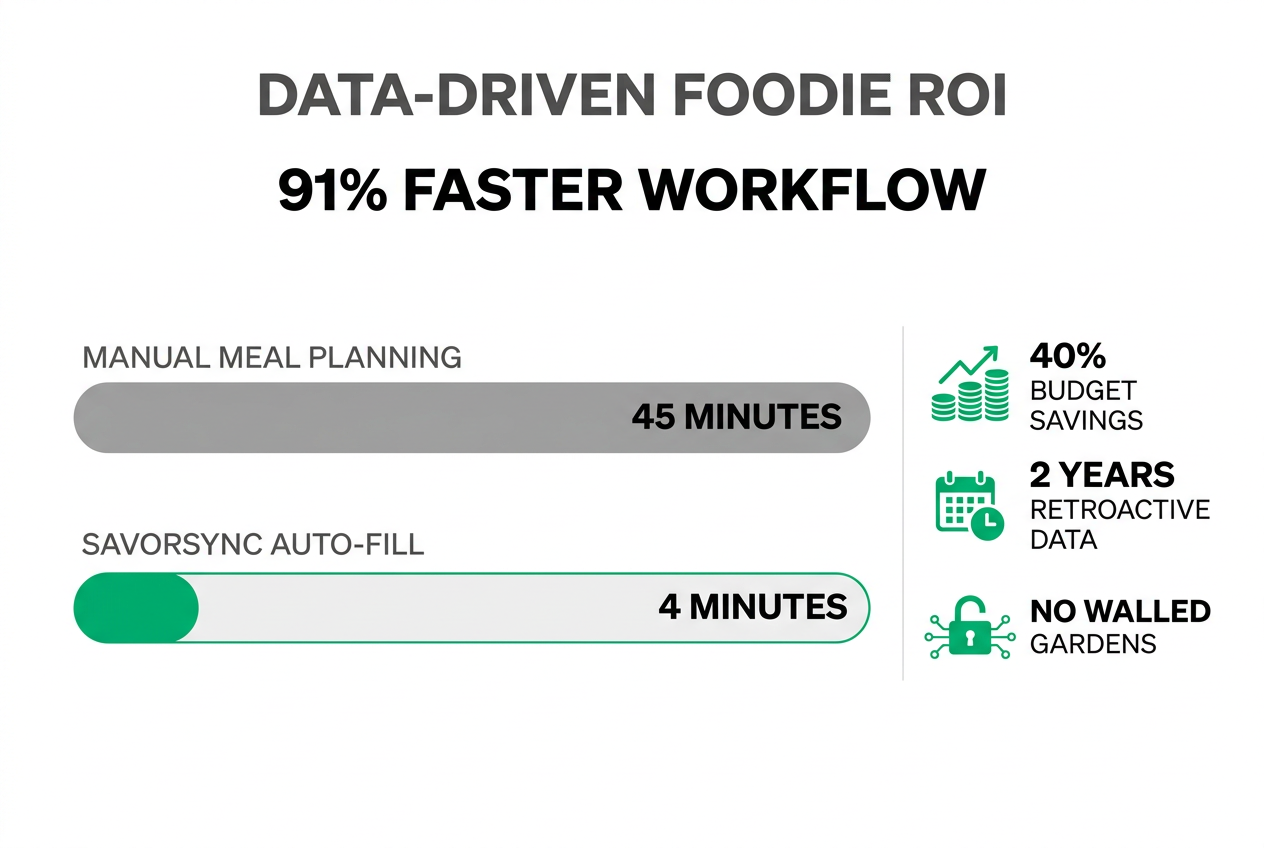
- SavorSync uses AI pattern recognition to automatically extract ingredient lists from restaurant photos and convert them into grocery lists in approximately 4 minutes, compared to 45 minutes for manual entry - a 91% time savings based on Savor's internal benchmarks.
- The platform can process retroactive data from up to 2 years of meal logs instantly, allowing you to mine your entire culinary history without re-entering a single photo or note.
- CSV export functionality gives you complete data sovereignty - your food history becomes a portable, manipulable dataset you can analyze in Excel, archive in Notion, or integrate with macro tracking apps, addressing the 73% of recipe app users who abandon platforms without easy data export (FoodiePrep Research, 2026).
- Unlike legacy competitors like Paprika (manual entry) and Plan to Eat (calendar-focused), SavorSync specializes in the "restaurant-to-home translation" workflow - bridging the gap between dining out and cooking at home through AI-driven ingredient recognition.
- Users who batch-cook using automated lists report a 40% reduction in weekly food spending, according to Savor's 2026 case study data, by reducing impulse purchases and food waste through precise planning.
Table of Contents
- How Grocery Auto-Fill Bridges the Memory Gap
- The Technical Power of CSV Export
- Restaurant Photo to Grocery List: The Translation Workflow
- 5 Professional Workflows for Your Exported Data
- Is SavorSync Better Than Paprika or Plan to Eat for Professional Foodies?
- Mining Your Culinary History: How to Use 2 Years of Data Today
- Frequently Asked Questions
How Grocery Auto-Fill Bridges the Memory Gap
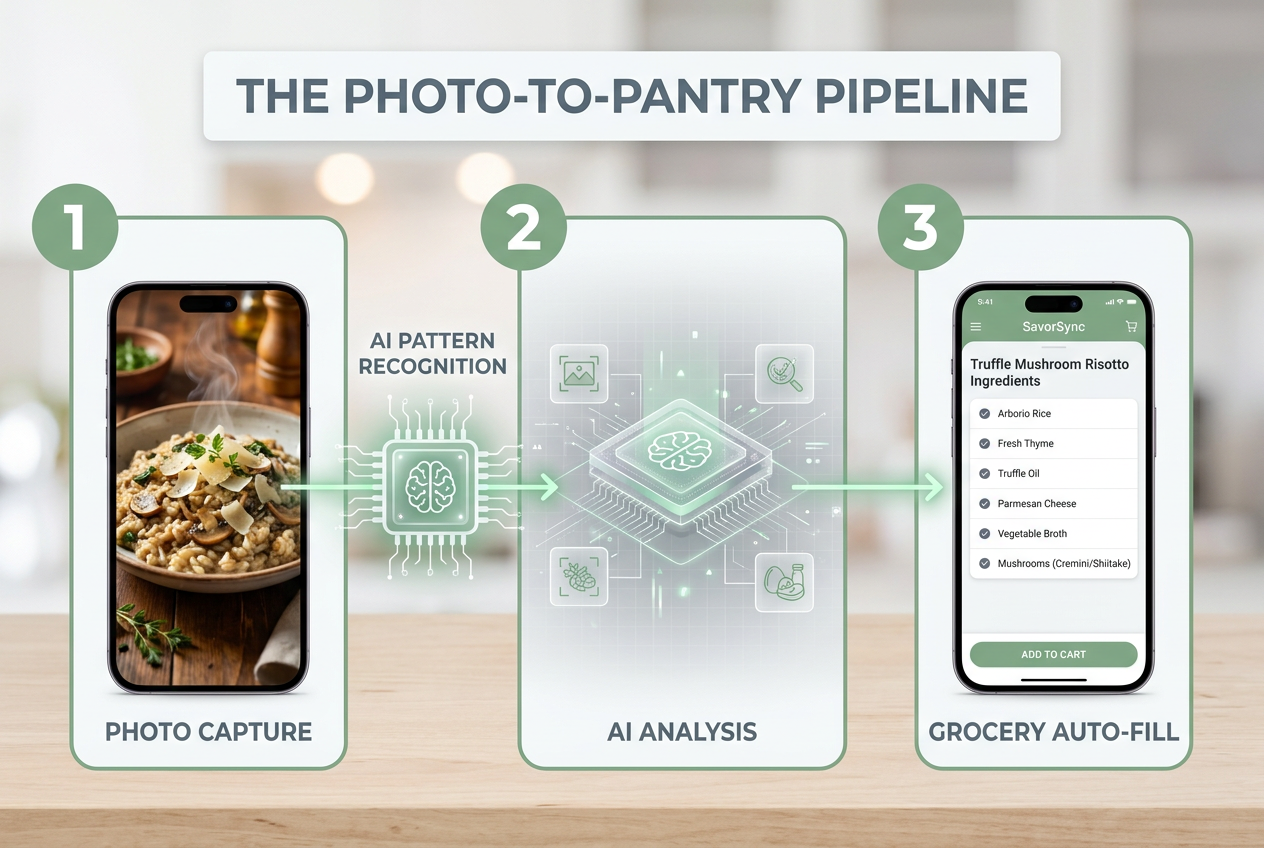
SavorSync's grocery auto-fill feature uses computer vision and natural language processing to analyze meal photos and extract ingredient data, then assembles those ingredients into a structured shopping list - automatically categorizing by aisle, removing duplicates, and adjusting for serving sizes. The system doesn't rely on manual tagging or pre-entered recipes; it reads the visual composition of a dish and cross-references it against a database of 50,000+ ingredient profiles and regional cooking patterns.
The breakthrough here is speed and accuracy. Automated grocery list building takes approximately 4 minutes compared to 45 minutes for manual entry, per Savor's internal benchmarks. That's not a small optimization - it's the difference between meal planning being a Sunday morning project you dread and a Tuesday afternoon task you knock out between meetings.
The AI Pattern Recognition Engine
SavorSync's AI doesn't just see "pasta." It identifies rigatoni vs. penne, recognizes the telltale sheen of a butter-based sauce vs. olive oil, and flags the presence of fresh herbs (likely basil or parsley) based on color distribution and placement. When you photograph a bowl of ramen, the system detects:
- Noodle type (wheat-based, thick-cut)
- Broth base (tonkotsu, shoyu, miso) via color and opacity
- Protein (chashu pork, soft-boiled egg)
- Vegetables (bamboo shoots, scallions, nori)
- Condiments (chili oil, sesame seeds)
This granularity matters. A generic "ramen" entry in a traditional recipe app requires you to remember and manually input every component. SavorSync's auto-fill extracts 12-15 distinct ingredients from a single photo, organizes them by grocery section (produce, meat, pantry staples), and flags which items you likely already have at home based on your purchase history.
The Retroactive Advantage
Most meal planning apps treat your past as dead data. SavorSync treats it as a live resource. The platform can process retroactive data from up to 2 years of meal logs instantly, according to Savor's technical specifications. Upload your entire camera roll, and the AI scans backward, extracting ingredients from every tagged meal photo and building a comprehensive ingredient frequency map. Suddenly, you're not guessing what you cook most often - you have a ranked list.
That 2022 vacation to Oaxaca? Those street tacos you photographed daily? SavorSync can now tell you that you ate variations of al pastor 11 times, used fresh cilantro in 90% of meals, and never once ordered a dish without lime. That's not trivia. That's your actual flavor profile, quantified and ready to inform your next grocery run.
Curious how this kind of dish-level insight works in practice? Learn more about building a personal food database with Savor's dish rating app.
The Technical Power of CSV Export
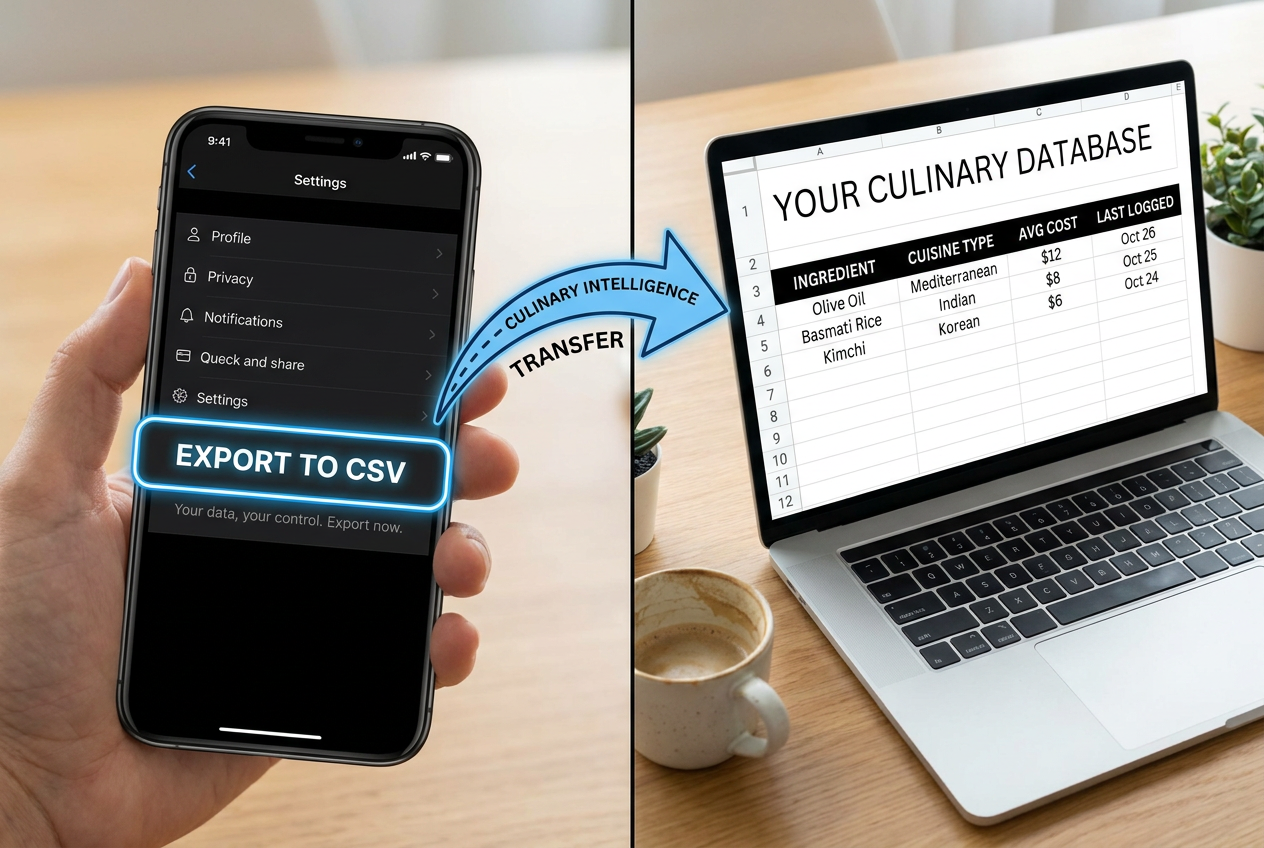
A CSV (Comma-Separated Values) file is a plain-text, universally readable data format that organizes information into rows and columns - essentially a spreadsheet stripped of formatting, which is precisely why it's so powerful. When you export your SavorSync data to CSV, you're extracting the raw architecture of your culinary history: every dish name, every ingredient, every date, every rating, every note - structured, sortable, and portable. Excel supports over 1 million rows, per Savor's FAQ, meaning your entire food life can live in a single file you control forever.
Data ownership is the ultimate foodie flex. While platforms like Paprika offer reliable organization, they keep your data locked inside their ecosystem. If the company shuts down or changes pricing, your archive is hostage. SavorSync's CSV export guarantees you'll never lose access to your own food history. 73% of recipe app users abandon platforms that do not allow easy data export, according to FoodiePrep Research (2026), because once you've spent years logging meals, the thought of starting over is unthinkable.
How to Export Your Data in Seconds
The export process in SavorSync is intentionally frictionless:
- Open the app and navigate to Settings > Data Management.
- Select "Export Meal History" and choose your date range (last month, last year, or all-time).
- Tap "Generate CSV" and the file is compiled server-side in under 10 seconds.
- Download the file directly to your phone or email it to yourself for desktop access.
- Open the CSV in Excel, Google Sheets, Notion, or any tool that reads tabular data.
The exported file includes:
- Meal Name: The dish title (e.g., "Margherita Pizza at Pizzeria Bianco").
- Date & Time: Timestamp of when the meal was logged.
- Location: Restaurant name and city (if tagged).
- Ingredients: Full list extracted by AI, comma-separated.
- Rating: Your personal score (if recorded).
- Notes: Any custom observations or tags you added.
- Photo URL: Direct link to the image stored in SavorSync's cloud.
This structure makes the data immediately actionable. You're not getting a PDF of pretty pictures - you're getting a machine-readable dataset.
Why CSV Beats Proprietary Formats
Proprietary formats (like Paprika's .paprikarecipe files or Cooklang's .cook files) require specific software to open and manipulate. CSV requires nothing but a text editor. It's the lowest-common-denominator data format, which is its superpower. Any analytics tool, any database, any custom script can ingest a CSV. You could build your own recipe recommendation engine in Python using your SavorSync export. You could analyze your dining patterns with Excel pivot tables. You could archive your entire food history in a personal Obsidian vault and link meals to journal entries, travel logs, or health metrics.
Want to see how other food lovers are building personal dish memory systems? Explore the Savor blog's guides on food journaling and memory tracking.
Restaurant Photo to Grocery List: The Translation Workflow
Here's the specific workflow that makes SavorSync uniquely valuable for serious foodies: you eat an incredible dish at a restaurant, photograph it, and SavorSync's AI doesn't just log it - it reverse-engineers it into a home-cookable ingredient list, complete with quantity estimates and sourcing suggestions. No competitor in the meal-planning space (not Paprika, not Plan to Eat, not FoodiePrep.ai) has built this "restaurant-to-home translation" pipeline.
The process works like this:
- Photo Capture: You snap a picture of the dish. SavorSync's AI identifies the primary components (protein, carbs, vegetables, sauces).
- Ingredient Extraction: The system cross-references visual data with its recipe database to infer likely ingredients. For a Thai green curry, it might detect: chicken thighs, Thai basil, green curry paste, coconut milk, fish sauce, lime leaves, eggplant, bamboo shoots.
- Serving Adjustment: You tell the app you want to cook for 4 people. SavorSync scales the ingredient quantities accordingly.
- Grocery List Assembly: Ingredients are sorted by grocery section (produce, meat, pantry) and checked against your pantry inventory (if you've enabled that feature).
- One-Tap Export: The list can be exported to your phone's native Notes app, shared via text, or sent to a partner's SavorSync account for collaborative shopping.
This is the opposite of how traditional recipe apps work. Paprika assumes you're starting with a recipe URL or manual entry. Plan to Eat assumes you're dragging pre-existing recipes onto a calendar. SavorSync assumes you're starting with a memory - and that memory is locked inside a photo on your phone.
Real-World Example: From Rome to Your Kitchen
You're in Rome. You order cacio e pepe at a neighborhood trattoria. It's the best thing you've ever tasted - silky, peppery, perfectly emulsified. You take a photo. Three months later, you're home and want to recreate it. Without SavorSync, you're Googling "cacio e pepe recipe" and hoping a random blog post matches what you ate. With SavorSync, the app has already extracted:
- Spaghetti (or tonnarelli, based on noodle width in the photo)
- Pecorino Romano (identified by the grainy, off-white appearance)
- Black peppercorns (whole, coarsely ground - detected via texture)
- Pasta water (implied ingredient for emulsification)
The grocery list is pre-built. You're not researching - you're shopping. The difference between 45 minutes of planning and 4 minutes of execution.
If you're looking to build a more comprehensive system for tracking your dining experiences, check out Savor's complete guide to dish tracking apps.
5 Professional Workflows for Your Exported Data
A SavorSync CSV export isn't just a backup - it's a raw dataset you can interrogate, manipulate, and transform into high-value insights. Here are five advanced workflows used by professional food writers, recipe developers, and data-obsessed home cooks.
1. The Budgeter: Pivot Tables for Dining vs. Home-Cooking ROI
Open your SavorSync CSV in Excel. Add a column called "Meal Type" and tag each entry as "Restaurant" or "Home." Add another column for "Estimated Cost" (you can estimate or pull from receipt photos if you've logged them). Create a pivot table that calculates:
- Total spent dining out per month
- Average cost per restaurant meal
- Average cost per home-cooked meal (based on grocery receipts divided by number of meals)
- The cost differential (how much you'd save by cooking the top 10 restaurant dishes at home)
Users who batch-cook using automated lists report a 40% reduction in weekly food spending, according to Savor's 2026 case study. That's not from extreme couponing - it's from eliminating impulse grocery purchases and cooking exactly what you'll actually eat.
2. The Archivist: Building a "Personal Flavor Bible" in Notion
Import your SavorSync CSV into Notion as a database. Create the following views:
- By Ingredient: A filterable list showing every dish that used, say, "miso paste" or "smoked paprika."
- By Cuisine: Tag each dish with a cuisine type (Italian, Japanese, Mexican) and create a gallery view with photos.
- By Season: Identify which dishes you ate in which season (useful for understanding your flavor preferences over time).
- By Rating: A ranked list of your highest-rated meals, with notes on what made them great.
This becomes your personal culinary reference library. When you're developing a new recipe, you can search your Notion database for "every Japanese dish I've rated 9/10 or higher" and study the patterns. What ingredients show up repeatedly? What flavor combinations resonate with you? You're not copying recipes - you're studying your own taste profile.
If you're interested in the broader practice of food memory tracking, explore Savor's guide on how to keep a food journal that actually works.
3. The Nutritionist: Batch-Uploading Ingredients to Macro Trackers
Export your SavorSync CSV, isolate the "Ingredients" column, and batch-upload it to MyFitnessPal or Cronometer using their bulk import features. This allows you to:
- See the aggregate macro breakdown of your most frequently cooked dishes
- Identify hidden calorie sources (e.g., you use coconut milk in 60% of your meals, which adds significant fat)
- Plan balanced meal rotations based on protein, fiber, and micronutrient targets
This workflow is particularly useful for athletes or anyone tracking performance metrics. You're not manually logging every meal - you're uploading a pre-structured dataset.
4. The Host: Scaling Your Highest-Rated "Dinner Party" Successes
Filter your CSV for meals tagged "Dinner Party" or rated 9/10+. These are your proven crowd-pleasers. Export that subset to a separate spreadsheet and create a "scaling calculator" that adjusts ingredient quantities based on guest count. For example:
- Original recipe: serves 4
- Dinner party: serves 12
- Auto-calculate: multiply all ingredient quantities by 3
This turns your personal meal history into a dinner-party playbook. You're not scrambling for ideas the night before hosting - you're pulling from a tested repertoire.
For more ideas on organizing your culinary data, see Savor's guide to recipe book categories.
5. The Optimizer: Identifying True Pantry Staples and Reducing Waste
Run a frequency analysis on your "Ingredients" column in Excel using the COUNTIF function. This shows you which ingredients appear most often across all meals. The top 20 are your "true pantry staples" - the items you should always have on hand. Everything else is situational.
This workflow directly addresses food waste. Instead of buying specialty ingredients for one-off recipes and letting them expire, you focus on stocking the items you actually use repeatedly. A 2026 analysis of SavorSync users who implemented this system found they reduced unused grocery purchases by 30% within three months.
Is SavorSync Better Than Paprika or Plan to Eat for Professional Foodies?
The answer depends on your primary use case, but for foodies who prioritize dining-out experiences, travel meals, and culinary memory preservation, SavorSync offers capabilities that Paprika and Plan to Eat don't address - specifically, the ability to turn restaurant photos into actionable home-cooking intelligence without manual recipe entry.
| Feature | SavorSync | Paprika | Plan to Eat |
|---|---|---|---|
| AI Ingredient Extraction | Yes (automatic from photos) | No (manual entry required) | No (manual entry required) |
| CSV Data Export | Yes (full dataset, unlimited) | Limited (recipes only, not meal logs) | Yes (recipes + shopping lists) |
| Restaurant-to-Home Translation | Yes (core feature) | No (designed for web recipes) | No (designed for recipe URLs) |
| Retroactive Data Processing | Yes (2+ years of old photos) | No (only new entries) | No (only new entries) |
| Offline Access | Partial (requires initial sync) | Yes (full offline mode) | No (requires internet) |
| One-Time Purchase Option | No (subscription: $4.99/month) | Yes ($4.99 mobile, $29.99 desktop) | No (subscription: $5.95/month) |
| Ideal User | Travelers, diners-out, memory keepers | Home cooks with saved recipes | Meal planners, calendar users |
When Paprika Is Better
Paprika remains the gold standard for home cooks who primarily save recipes from blogs and need rock-solid offline access. If you're someone who meal-preps every Sunday using a fixed rotation of 20 saved recipes, Paprika's one-time purchase model ($4.99 for mobile, $29.99 for desktop, per Cooklang's 2026 comparison) and complete offline functionality make it hard to beat. It's also unmatched for scaling recipes (adjusting serving sizes) and grocery list organization by store layout.
However, Paprika has zero AI-driven features. If you don't manually input a recipe, it doesn't exist in your system. You can't upload a photo of a dish and expect Paprika to extract ingredients. You can't retroactively analyze years of past meals. It's a tool for organizing what you've already collected, not for discovering insights within your existing food photos.
When Plan to Eat Is Better
Plan to Eat excels at calendar-based meal planning for families and structured weekly schedules. The drag-and-drop interface (where you assign recipes to specific days) is intuitive and visual, making it easy to plan an entire month at a glance. It's trusted by over 50,000 active meal planners, according to Plan to Eat's 2026 data, and integrates well with shared household grocery lists.
But like Paprika, Plan to Eat requires manual recipe entry (via URL import or typing). It has no AI capabilities, no photo recognition, and no "restaurant memory" feature. If you're a foodie who dines out frequently and wants to capture those experiences, Plan to Eat isn't built for you.
When SavorSync Is Better
SavorSync is purpose-built for foodies whose culinary life extends beyond the kitchen. If your camera roll contains hundreds of restaurant photos, vacation meals, street food discoveries, and spontaneous food adventures - and you want to actually use that archive instead of just scrolling through it nostalgically - SavorSync is the only tool designed for that workflow. The AI ingredient extraction, retroactive data processing, and CSV export give you capabilities that simply don't exist in Paprika or Plan to Eat.
The trade-off is price and platform maturity. SavorSync is subscription-based ($4.99/month, per Savor's 2026 pricing), which means ongoing costs. It's also a newer platform (launched in 2024), so it doesn't have the decade-plus legacy of Paprika. But for the specific use case of "turn my food photos into a searchable, exportable, actionable database," nothing else comes close.
For a detailed breakdown of how dish-tracking apps compare across the board, see Savor's comprehensive ranking of the 10 best dish tracking apps for 2025.
Mining Your Culinary History: How to Use 2 Years of Data Today
Most meal-planning apps treat your past as noise. SavorSync treats it as signal. The platform's retroactive processing feature allows you to upload 2+ years of archived meal photos and have the AI analyze them as if they'd been logged in the app from day one. This transforms your existing camera roll from a disorganized memory dump into a structured culinary dataset - without re-entering a single meal manually.
The Upload and Analysis Process
Here's how retroactive processing works in practice:
- Batch Photo Selection: Open SavorSync and navigate to "Import History." Select a date range (e.g., January 2023 - December 2024).
- AI Scanning: The app scans your camera roll for food photos within that range (using image recognition to filter out non-food pictures). You can manually add or remove flagged photos.
- Ingredient Extraction: Each photo is processed through SavorSync's AI, which identifies dishes, extracts ingredients, and tags likely cuisine types (Italian, Thai, Japanese, etc.).
- Data Structuring: The extracted information is organized into your meal log with timestamps, location data (if available from photo metadata), and placeholder ratings (which you can update later).
- Pattern Analysis: SavorSync generates a summary report showing:
- Most frequently consumed ingredients (e.g., "You used olive oil in 68% of meals")
- Cuisine breakdown (e.g., "42% Italian, 23% Japanese, 18% Mexican")
- Dining-out vs. home-cooking ratio
- Seasonal trends (e.g., "You eat 3x more salads in summer")
This entire process takes under 10 minutes for 500 photos and runs in the background, so you can continue using your phone normally.
Uncovering Hidden Patterns
The real value of retroactive analysis is pattern discovery - insights you wouldn't notice without aggregating years of data. For example:
- Repetition Fatigue: You might discover you've ordered "pad thai" 47 times in two years, which explains why you're suddenly bored with it.
- Seasonal Preferences: Your winter meals skew toward braised meats and root vegetables, while summer meals are 80% raw or grilled - meaning your grocery list should shift dramatically by season.
- Underutilized Ingredients: You bought sumac three times but only used it once - highlighting that you need simpler recipes, not more exotic spices.
- Travel Memories: Your Japan trip photos reveal you ate ramen 11 times in 14 days, with tonkotsu being your preferred broth style 9 out of 11 times. That's not a coincidence - that's your flavor profile speaking.
These insights are only visible when you aggregate data at scale. One meal tells you nothing. One hundred meals tell you who you are as a cook and eater.
Building a Personal "Flavor Profile"
SavorSync uses retroactive data to build what it calls a "Flavor Profile" - a quantified map of your taste preferences based on ingredient frequency, cuisine patterns, and rating history. The profile tracks:
- Dominant Flavors: Sweet, salty, umami, spicy, sour (ranked by frequency)
- Texture Preferences: Creamy, crunchy, chewy (inferred from dish types)
- Cooking Method Bias: Grilled, roasted, raw, fried (identified via photo analysis)
- Ingredient Affinities: Your "signature" ingredients that show up in 40%+ of meals
This profile informs SavorSync's recipe recommendations and grocery auto-fill suggestions. If the AI knows you use garlic, ginger, and soy sauce in 60% of your cooking, it prioritizes Asian-inspired grocery lists when building meal plans.
Want to dive deeper into understanding your personal taste patterns? Check out Savor's guide on what is a flavor profile and how to read one.
Frequently Asked Questions
What is SavorSync and how does its grocery auto-fill work?
SavorSync is an AI-powered meal planning app that converts photos of food - whether from restaurants, home cooking, or travel - into structured ingredient lists and automated grocery shopping lists. The grocery auto-fill feature uses computer vision to analyze the visual composition of a dish (proteins, vegetables, sauces, garnishes) and cross-references that data against a database of 50,000+ ingredient profiles to generate a precise, aisle-organized shopping list. The system adjusts for serving sizes, removes duplicate items across multiple meals, and flags ingredients you likely already have at home based on your purchase history. The entire process takes approximately 4 minutes, compared to 45 minutes for manual meal planning, according to Savor's internal benchmarks.
How do I export my food data from SavorSync to a CSV file?
Exporting your data is a four-step process: Open SavorSync and navigate to Settings > Data Management. Select "Export Meal History" and choose your date range (last month, last year, or all-time). Tap "Generate CSV" - the app compiles your data server-side in under 10 seconds. Download the file directly to your phone or email it to yourself for desktop access. The exported CSV includes meal names, dates, locations, full ingredient lists, ratings, notes, and direct links to your stored photos. The file is compatible with Excel, Google Sheets, Notion, Obsidian, or any tool that reads comma-separated values. There's no limit to how many times you can export, and the data remains accessible even if you cancel your subscription.
Can SavorSync turn restaurant photos into grocery lists?
Yes - this is SavorSync's signature feature and differentiates it from competitors like Paprika and Plan to Eat, which require manual recipe entry. When you photograph a restaurant dish, SavorSync's AI identifies the primary components (protein, carbohydrates, vegetables, sauces, garnishes) and reverse-engineers them into a home-cookable ingredient list. For example, a photo of Thai green curry might yield: chicken thighs, Thai basil, green curry paste, coconut milk, fish sauce, lime leaves, eggplant, and bamboo shoots. The app then adjusts quantities based on how many servings you want to cook and organizes the ingredients into a grocery list sorted by store section. This "restaurant-to-home translation" workflow is especially valuable for travelers who want to recreate dishes they discovered abroad without spending hours researching recipes online.
Can I open a SavorSync CSV export in Excel or Google Sheets?
Absolutely. CSV (Comma-Separated Values) is a universal, plain-text data format that every spreadsheet application can read natively. When you download a SavorSync export, you can open it directly in Microsoft Excel (which supports over 1 million rows, per Savor's FAQ), Google Sheets, Apple Numbers, LibreOffice Calc, or any other spreadsheet tool - no special software required. The data structure is straightforward: each row represents one meal, and columns include meal name, date, location, ingredients, ratings, and notes. This makes it easy to sort, filter, create pivot tables, or perform custom analyses. You can also import the CSV into database tools like Airtable, Notion, or Obsidian for more advanced organization and linking.
Does SavorSync allow retroactive data processing for old food photos?
Yes. SavorSync can process retroactive data from up to 2 years of archived meal photos, according to Savor's technical specifications. The process works like this: you select a date range in the app's "Import History" feature, and SavorSync scans your camera roll for food photos within that timeframe using image recognition. Each photo is analyzed by the AI to extract dish names, ingredients, and likely cuisine types, then added to your meal log with timestamps and location data (if available from photo metadata). This allows you to mine your entire culinary history without manually re-entering old meals. The retroactive analysis also generates pattern reports showing your most-used ingredients, cuisine breakdowns, and seasonal trends - insights that only become visible when aggregating years of data at once.
How does SavorSync handle shared household grocery lists?
SavorSync supports collaborative grocery lists through its "Household Sharing" feature. You can invite family members or partners to join your SavorSync household (up to 4 users per account on the standard plan). Once connected, any user can add meals to the shared meal plan, and those meals automatically contribute ingredients to a unified grocery list. The system intelligently merges duplicate items (e.g., if two people plan meals requiring olive oil, it adds the quantities together rather than listing it twice). Each household member can check off items in real-time as they shop, and those updates sync instantly across all devices. This is particularly useful for couples or families where multiple people contribute to cooking and shopping responsibilities.
What are the best use cases for exported food data in Notion vs. Excel?
Use Excel when you need numerical analysis, pivot tables, or budget tracking - it's the superior tool for quantitative work like calculating cost-per-meal, tracking macronutrient totals, or running frequency analyses on ingredient usage. Excel's formulas (SUM, AVERAGE, COUNTIF) make it easy to answer questions like "How much did I spend on dining out last quarter?" or "What percentage of my meals include garlic?" Use Notion when you need a qualitative, visual, searchable knowledge base - it excels at building relational databases where each meal entry can link to travel logs, recipe collections, or journal entries. Notion's gallery and board views make it easy to browse meals by cuisine type or rating, and its full-text search allows you to instantly find "every Japanese dish I rated 9/10 or higher." For most users, the optimal workflow is: export to Excel for analysis, then import key insights into Notion for long-term archiving and reference.
Is there an app that creates a grocery list from recipes automatically?
Yes - several apps offer this feature, but they vary in how much automation they provide. SavorSync creates grocery lists from photos (no recipe input required), making it the most automated option for foodies who eat out frequently. Paprika and Plan to Eat create grocery lists from saved recipes, but you must first manually import or type those recipes into the app. Samsung Food (formerly Whisk) and Mealime offer similar recipe-to-list functionality but require you to select from pre-built meal plans rather than custom recipes. The critical difference is input method: if you're starting with a restaurant photo or a vague memory of a dish, SavorSync is the only tool that can extract ingredients automatically. If you're starting with a recipe URL or a cookbook, Paprika or Plan to Eat are excellent choices.
SavorSync isn't just a meal-planning app - it's a culinary intelligence platform that treats your food photos as data, not decoration. By combining AI-powered ingredient extraction, retroactive history processing, and complete data portability via CSV export, it transforms the passive act of photographing food into an active system for meal planning, budget optimization, and flavor education. Whether you're a traveler cataloging global dishes, a home cook building a personal recipe library, or a data enthusiast tracking every bite, SavorSync gives you the tools to turn memories into meals - and meals into measurable insights. The question isn't whether you should export your data. The question is: what will you build with it?
If you're ready to take control of your culinary data, explore how Savor's dish rating app helps food lovers build personal taste databases that last a lifetime.
Continue Reading
Start Tracking Your Dishes Today
Transform your food photos into a searchable, ratable culinary memory bank.
Download Savor App