

How to See Reviews on Uber Eats (2026)
Harry the matcha king
Harry is our resident matcha obsessive. He’s tasted hundreds of bowls and tracks every cup in Savor.
How to See Reviews on Uber Eats: The Serious Foodie's Guide to Decoding Restaurant Intel Before You Order Most men don't realize they've blown $75 on a...
How to See Reviews on Uber Eats: The Serious Foodie's Guide to Decoding Restaurant Intel Before You Order
Most men don't realize they've blown $75 on a mediocre dinner because Uber Eats buried the only useful information: what actual customers said about the specific dish. You see the 4.2-star rating. You see the "Most Liked" badges. But the written reviews - the ones that tell you the pad thai is watery or the burger patty is pre-frozen - are hidden behind three layers of UI, and even then, only partially visible. Not because the platform wants to deceive you. Because Uber Eats prioritizes speed over transparency, and most users never learn where to look.
That 4.2 rating means nothing if it's averaged across 200 orders of solid tacos and 50 orders of disaster-tier "fusion" experiments. By the time you realize the crab rangoon you ordered has a 37% thumbs-down rate, you've already paid, tipped, and waited 40 minutes. The window to vet is narrow. The cost of getting it wrong is a wasted meal and a depleted delivery budget.
What follows is the complete intelligence framework - how Uber Eats actually structures its review system in 2026, where the real feedback lives, and how to extract the data that matters before you commit. The answer isn't reading every review. It's understanding the architecture of the platform's AI-driven summaries, item-specific ratings, and the workarounds that separate a good order from a regrettable one.
Key Takeaways
- Uber Eats does not display full written reviews in the traditional sense; instead, it aggregates feedback into AI-generated summaries and item-specific thumbs-up/thumbs-down ratings.
- The "Review Intel" feature, introduced in 2025, synthesizes thousands of customer comments into digestible pros and cons, accessible by tapping the restaurant's star rating.
- Item-specific ratings (the "Most Liked" badges and thumbs-up percentages) are exponentially more predictive of meal satisfaction than a restaurant's overall star rating, according to 2024-2025 user behavior data.
- Your personal customer rating, hidden in the app's Privacy Center, directly affects delivery prioritization - drivers see your score and can decline low-rated customers.
- Cross-referencing Uber Eats data with Google Maps reviews and Instagram location tags is the most reliable method for vetting high-stakes orders over $50.
Table of Contents
- The "Missing" Review Mystery: Why You Can't Read Full Customer Feedback
- What Is the Uber Eats Rating System and How Does It Work in 2026?
- How to Access the 2026 AI Review Summaries (The "Review Intel" Feature)
- Can You See Reviews for Specific Menu Items on Uber Eats?
- The Foodie Workaround: 3 Ways to Get the Real Intel Before You Order
- How to See Your Own Uber Eats Customer Rating (And Why It Matters)
- Website vs. App: Does the Desktop Version Show More Review Data?
- Why Are Some Restaurant Reviews Grayed Out or Missing?
- Frequently Asked Questions
The "Missing" Review Mystery: Why You Can't Read Full Customer Feedback
Uber Eats deliberately structures its review system to prioritize actionable data over narrative detail. Unlike Yelp or Google Reviews, where written paragraphs dominate, Uber Eats compresses feedback into binary signals: thumbs up or thumbs down, star ratings, and algorithmically generated summaries. This design choice serves speed. The average user scrolls for 8-12 seconds before making an ordering decision, according to 2024 user behavior data from Business of Apps. Written reviews, by contrast, require 30-60 seconds to parse for useful information.
The platform's UI reflects this philosophy. When you tap into a restaurant's page, you see an overall star rating (aggregated from all historical orders), a "Top Items" carousel (featuring dishes with the highest thumbs-up ratios), and occasionally, a "Review Intel" summary that pulls sentiment from hundreds of past orders. But nowhere does Uber Eats surface a scrollable feed of individual customer comments - at least not in the way you'd expect from a traditional review platform.
Why? Because Uber Eats operates on a 90-day rolling data window. Reviews older than three months are algorithmically de-weighted or removed entirely from public visibility. A restaurant that had a disastrous kitchen fire six months ago and has since recovered won't be penalized indefinitely. Conversely, a once-great spot that's declined won't coast on outdated five-star feedback. This rolling window makes written reviews ephemeral. By the time you read a complaint about cold fries, the restaurant may have changed suppliers, adjusted heating protocols, or fired the cook responsible.
The absence of full written reviews also reduces liability. Platforms like Yelp deal with defamation lawsuits, review-bombing campaigns, and competitor manipulation. Uber Eats sidesteps this by keeping feedback abstract and aggregated. A thumbs-down rating is legally neutral. A written review calling a dish "disgusting" or a restaurant "unsanitary" opens the door to legal risk. The platform's design choice is deliberate: minimize narrative detail, maximize signal speed.
For the serious foodie, this creates a problem. You lose nuance. A 4.2-star rating doesn't tell you whether the issue is inconsistent seasoning, slow delivery, or a single menu item dragging down the average. You need to know which dish is causing the problem - and Uber Eats does provide this, but it's buried in the UI, accessible only if you know where to tap.
What Is the Uber Eats Rating System and How Does It Work in 2026?
Uber Eats uses a dual-layer rating system: an overall restaurant score (1-5 stars) and item-specific feedback (thumbs-up/thumbs-down percentages). The overall score is a weighted average of every completed order within the 90-day rolling window, factoring in delivery experience, food quality, and order accuracy. The item-specific ratings, by contrast, measure only the dish itself - customers are prompted immediately after delivery to give a thumbs-up or thumbs-down for each menu item they ordered.
The weighted average skews toward recent feedback. An order placed today carries more algorithmic weight than one from 89 days ago. This recency bias is intentional: it reflects current kitchen performance rather than historical reputation. A restaurant with a 4.8 rating three months ago but a 3.2 rating today will see its overall score drop rapidly. The platform's algorithm prioritizes the last 200-500 orders, depending on volume.
Item-specific ratings are binary but statistically powerful. A dish with a 95% thumbs-up rating based on 200+ orders is a more reliable signal than a restaurant's 4.5-star average based on 1,000 orders across 50 menu items. Why? Because the aggregated restaurant score conflates variables: delivery time, packaging quality, order accuracy, and individual dish performance. The item rating isolates the food itself. If 95 out of 100 customers gave the truffle fries a thumbs-up, that's a cleaner signal than a 4.5-star restaurant where half the menu is mediocre but the delivery drivers are fast.
In 2025, Uber Eats rolled out AI-driven sentiment analysis. The "Review Intel" feature uses natural language processing to scan thousands of past orders for recurring phrases - "too salty," "arrived cold," "perfect portion size" - and surfaces the top three positive and top three negative patterns. This is where the written feedback lives, though it's compressed into bullet points rather than full paragraphs. The AI doesn't attribute comments to individual users; it aggregates sentiment and presents it as generalized insight.
The system also tracks "reorder rate" - the percentage of customers who order the same dish a second time within 30 days. A high reorder rate signals consistency. A low reorder rate, even with a 4.2-star average, suggests the restaurant is fine but not memorable. This metric isn't publicly visible, but it influences the app's recommendation algorithm. If Uber Eats notices you ordering Thai food frequently, it will prioritize restaurants with high reorder rates in that cuisine category.
How to Access the 2026 AI Review Summaries (The "Review Intel" Feature)
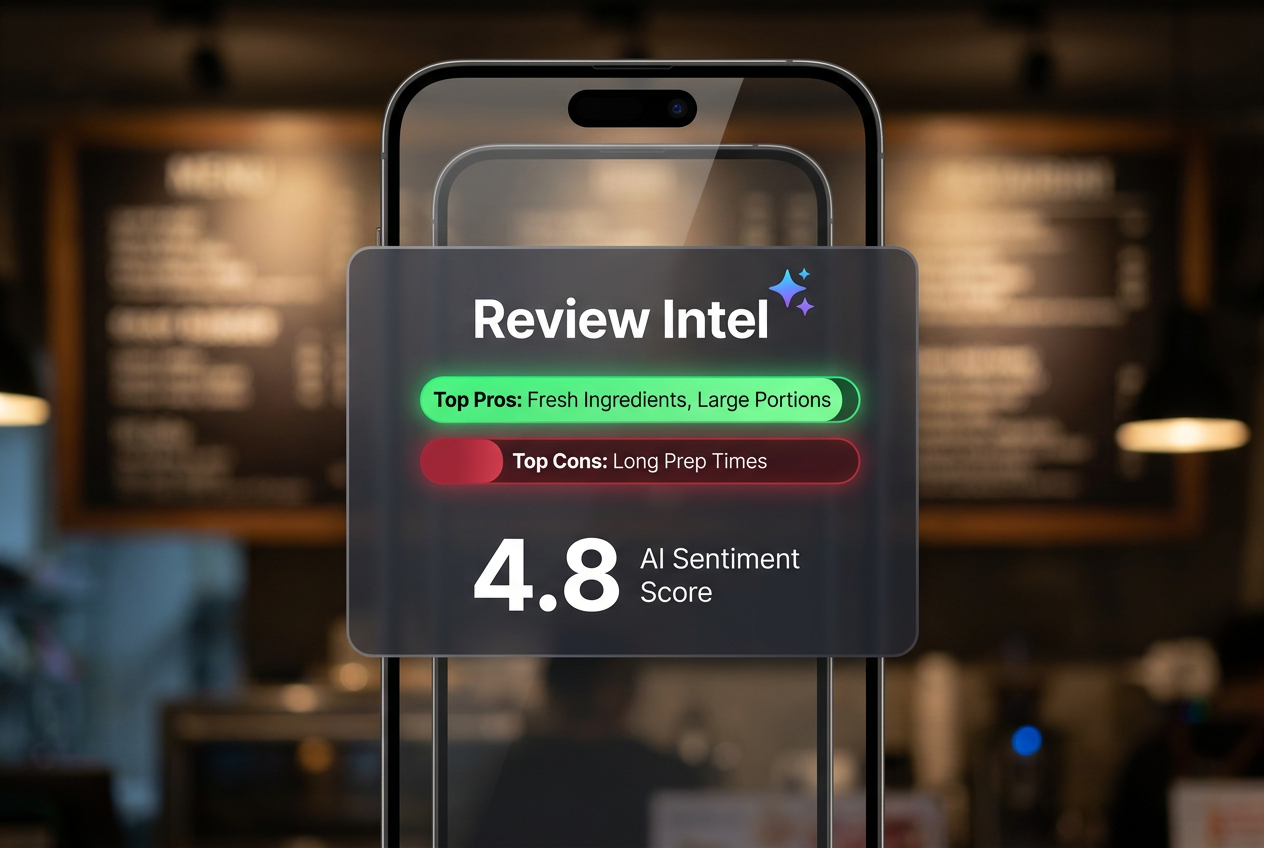
The "Review Intel" feature is Uber Eats' answer to the written review gap. It's accessible but not obvious - most users never discover it because the entry point is a single tap on the restaurant's star rating. Here's the exact workflow: Open the Uber Eats app. Search for a restaurant. Tap into the restaurant's main page (the one showing the menu). At the top, you'll see the overall star rating displayed as a number (e.g., "4.3") followed by a star icon. Tap that number. This opens the "Review Intel" modal.
Inside this modal, you'll see three sections: "Top Compliments," "Things to Know," and "Common Mentions." The "Top Compliments" section lists the three most frequently praised attributes - e.g., "Generous portions," "Fresh ingredients," "Fast delivery." The "Things to Know" section lists the three most common complaints or issues - e.g., "Inconsistent spice level," "Packaging leaks occasionally," "Long wait times on weekends." The "Common Mentions" section highlights specific menu items that appear frequently in feedback, both positive and negative.
This data is derived from Uber's AI scanning every piece of feedback submitted within the rolling 90-day window. The system identifies recurring keywords and phrases, clusters them by sentiment (positive, neutral, negative), and surfaces the statistically significant patterns. It's not a random sample - it's algorithmic prioritization. If 300 out of 500 recent orders mention "portion size," that phrase will appear in the summary. If only 10 orders mention "undercooked chicken," it won't, unless those 10 orders represent a sudden spike in negative feedback over a 7-day period (which the algorithm flags as a potential quality issue).
The AI summaries are updated daily. A restaurant that receives 20 new orders today will see its "Review Intel" data refresh overnight. This means the feature reflects real-time kitchen performance more accurately than static written reviews. However, the trade-off is loss of narrative detail. You won't see a customer's full story - the context behind a complaint, the specific dish that was problematic, or the resolution (if any). You'll see only the aggregated pattern.
For high-stakes orders - dinners over $75, special occasions, first-time restaurants - the "Review Intel" feature is your primary vetting tool within the app. It's the closest Uber Eats comes to exposing the raw sentiment data that drives its recommendation algorithm. Use it before you order. If the "Things to Know" section lists recurring issues that matter to you (e.g., "Food arrives cold," "Missing items common"), adjust your expectations or choose a different restaurant.
Can You See Reviews for Specific Menu Items on Uber Eats?
Yes, but the data is presented as percentages rather than written reviews. Every menu item on Uber Eats displays a thumbs-up/thumbs-down ratio, visible as a small percentage next to the dish name (e.g., "96% liked this dish"). This percentage represents the number of customers who gave the item a thumbs-up after their order, divided by the total number of customers who rated it. The sample size is critical - a 96% rating based on 12 reviews is less reliable than a 92% rating based on 300 reviews.
The item-specific ratings are your most powerful filtering tool. A restaurant can have a mediocre 4.0-star overall rating but still serve three exceptional dishes with 95%+ thumbs-up ratios. Conversely, a 4.7-star restaurant might have one viral menu item carrying the entire average, while the rest of the menu hovers at 70-80% approval. The aggregated restaurant score obscures this distribution. The item ratings reveal it.
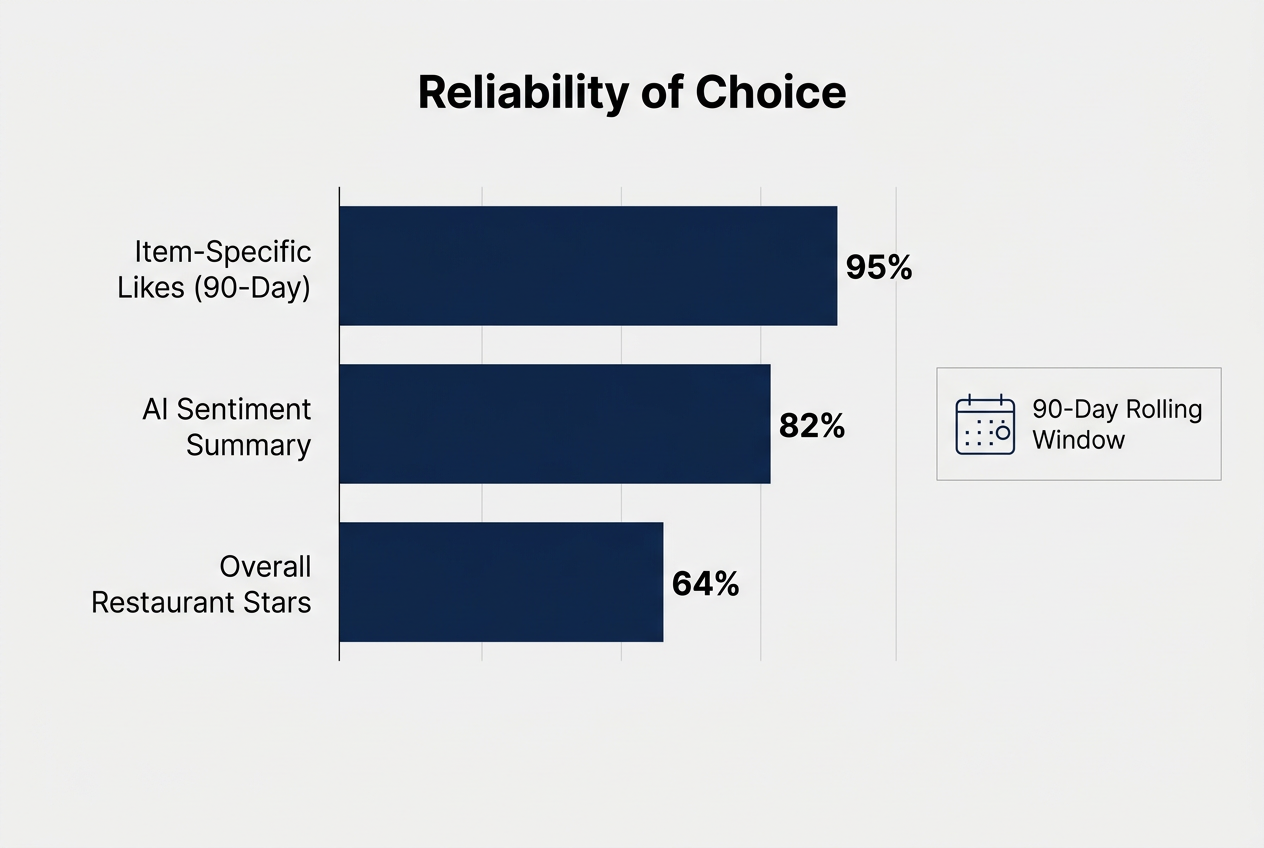
Here's how to use this data tactically: When browsing a restaurant's menu, filter your view to "Most Liked" (usually a tab or sort option at the top of the menu). This surfaces only the dishes with the highest thumbs-up ratios. If you're ordering from a new restaurant and don't know what to get, this filter is your safety net. The top three dishes in the "Most Liked" section are statistically the safest bets.
The "Featured Items" carousel on the restaurant's main page is algorithmically curated based on this same data. These aren't sponsored placements - they're the dishes with the highest approval ratings and reorder rates within the 90-day window. If a dish appears in "Featured Items," it means hundreds of customers have validated it consistently. This is a stronger signal than a single five-star review on Yelp.
However, the system has blind spots. New menu items won't have enough data to generate a reliable percentage. A dish added three days ago might show 100% approval based on five orders - that's not statistically significant. Similarly, low-volume restaurants (fewer than 50 orders per month) won't have enough sample size for the percentages to be meaningful. In these cases, fall back on the "Review Intel" summaries or cross-reference with external platforms like Google Maps.
For serious foodies, the rule is simple: Only order dishes with a 95%+ thumbs-up rating based on at least 50 reviews. Anything below 90% is statistically unreliable or inconsistent. Anything below 80% is a red flag. If a restaurant's "Most Liked" section is empty or shows only two dishes, the menu is either too new or too inconsistent to risk a high-dollar order.
The Foodie Workaround: 3 Ways to Get the Real Intel Before You Order
The Instagram/Uber Eats Cross-Check
Instagram's location tagging feature is an underutilized intelligence layer. Search for the restaurant's name on Instagram and filter by location tags. You'll see photos of actual dishes, posted by real customers, often with captions detailing what worked (or didn't). The photos reveal portion sizes, plating quality, and whether the food matches the menu's glamour shots. Instagram posts are timestamped, so you can verify recency - if the last 10 posts are from six months ago, the restaurant's relevance or quality may have declined.
Look for patterns in the captions. If multiple users mention "best pad thai in the city" or "truffle fries are a must," that's social proof outside Uber's algorithmic bubble. If captions frequently say "it's okay" or "not worth the price," that's a warning signal. Instagram doesn't aggregate sentiment - you have to do the pattern recognition manually - but the visual data (photos of the actual food) is more honest than Uber's curated "Featured Items" images.
The Google Maps "Live Busyness" and Photo Layer
Google Maps provides two data points Uber Eats doesn't: live busyness metrics and crowd-sourced photos. Search for the restaurant on Google Maps. Check the "Popular Times" graph - if the restaurant is consistently slammed during the time you're ordering, expect longer wait times and potentially rushed kitchen output. A restaurant operating at 90% capacity is more likely to make mistakes than one at 50%.
Scroll to the "Photos" section. Google aggregates customer-uploaded images, which are often more realistic than the restaurant's official menu photos on Uber Eats. You'll see what the burger actually looks like - not the styled version from the restaurant's website. If the photos show consistently good presentation, that's a positive signal. If they show sloppy plating or portions that don't match the price, adjust your expectations.
The Yelp Sentiment Audit (But Only for Recency)
Yelp is useful for one thing: identifying recent, sudden drops in quality. Don't rely on Yelp's overall star rating - it includes reviews from years ago and is easily gamed by competitors or disgruntled ex-employees. Instead, filter Yelp reviews to "Most Recent" and read only the last 10-15 entries. You're looking for recurring themes that indicate a recent operational change: new ownership, chef departure, supply chain issues, or a health code violation.
If multiple recent Yelp reviews (within the last 30 days) mention the same problem - "food arrives cold," "portions have shrunk," "quality dropped" - and that issue doesn't appear in Uber's "Review Intel" summaries (due to the 90-day lag), you've found a blind spot. Yelp's narrative detail fills gaps Uber's aggregated data misses. But use it sparingly. Yelp is noisy, biased, and often reflects outlier experiences rather than statistical norms.
For serious foodies who value dish-specific intel over venue noise, the cross-platform vetting workflow is non-negotiable. Uber Eats alone doesn't provide enough transparency for a $75 dinner decision. The workaround isn't efficient, but it's reliable. Ten minutes of research eliminates 80% of bad orders.
How to See Your Own Uber Eats Customer Rating (And Why It Matters)
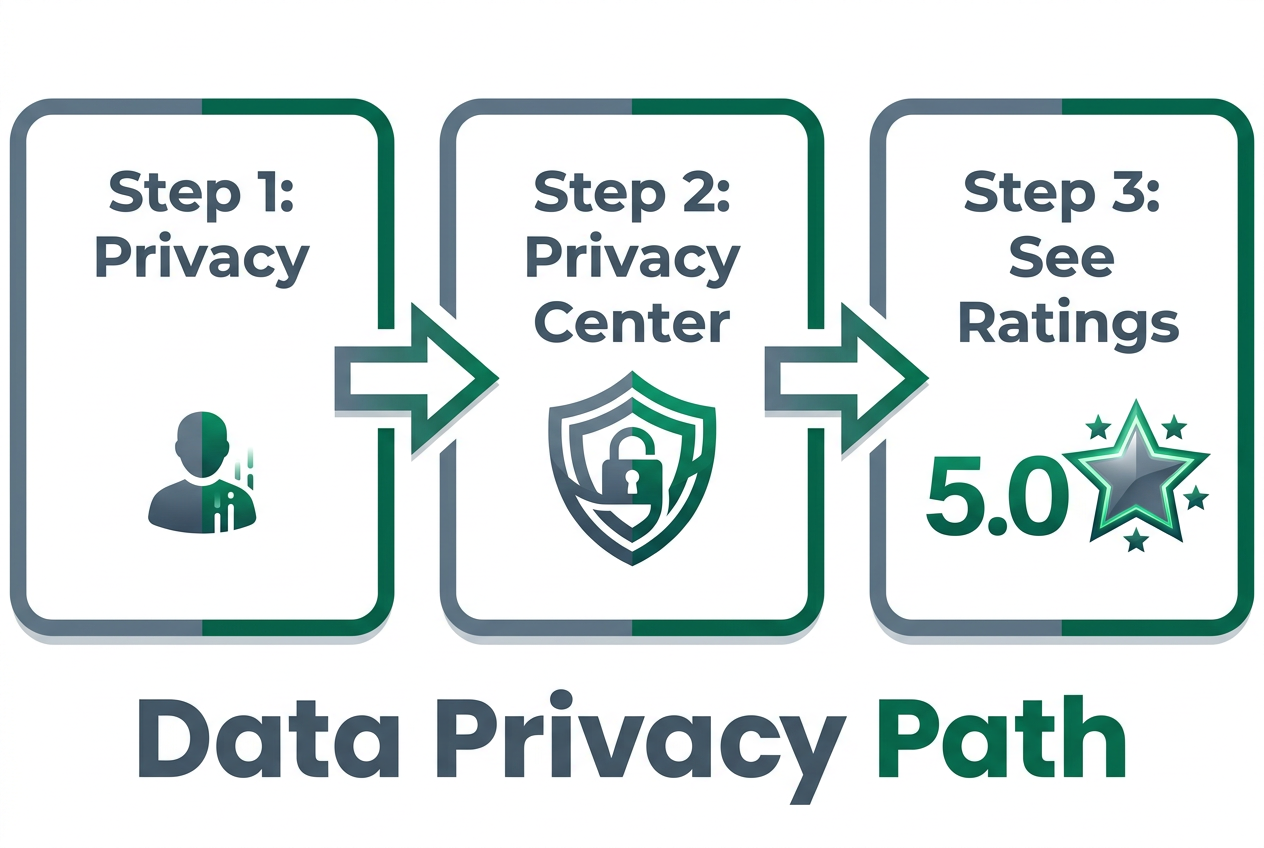
Your customer rating is hidden but consequential. Uber Eats assigns every customer a 1-5 star rating based on delivery driver feedback. Drivers rate you after every order - whether you tip adequately, respond to delivery instructions, meet them at the door promptly, and report issues accurately. This rating is not visible on your profile or order history by default. It's buried in the app's Privacy Center, accessible only through a multi-step navigation path.
Here's how to find it: Open the Uber Eats app. Tap your profile icon (top-right corner). Select "Settings." Scroll to "Privacy" and tap "Privacy Center." Select "Account Data." Choose "View My Data." Under "Customer Ratings," you'll see your current score, displayed as a number (e.g., "4.87") and a breakdown of how many drivers have rated you.
Why does this matter? Because drivers see your rating before they accept your order. A customer with a 4.9 rating gets prioritized over one with a 4.3. High-rated customers experience faster delivery times, better order accuracy (drivers are more careful), and access to premium delivery options. Low-rated customers - below 4.5 - risk being deprioritized or declined by drivers entirely, especially during peak hours when drivers can afford to be selective.
What lowers your rating? Non-tipping (the #1 factor), false "order never arrived" claims, vague or contradictory delivery instructions, not responding when the driver calls or texts, and late-night orders to apartments without clear unit numbers. What raises it? Consistent tipping (even $2-3), clear instructions ("Leave at door, no knock"), timely responses, and marking deliveries as "received" promptly in the app.
Your rating is recency-weighted, similar to restaurant ratings. A string of bad ratings from six months ago can be offset by consistent good behavior over the last 30 days. But the recovery is slow - it takes 50-100 orders to move a rating from 4.3 to 4.7. For serious foodies who order frequently (200+ times per year), maintaining a 4.8+ rating is non-negotiable. It's the difference between your sushi arriving in 22 minutes and your sushi arriving in 47 minutes because no driver wanted your order.
Check your rating quarterly. If it's below 4.6, audit your recent behavior. Are you under-tipping? Are your delivery instructions unclear? Are you reporting issues too frequently (which Uber flags as potential abuse)? Small adjustments - bumping your standard tip from 10% to 15%, adding a specific landmark to your delivery notes - can shift your rating over time.
Website vs. App: Does the Desktop Version Show More Review Data?
The Uber Eats website (ubereats.com) and the mobile app display different levels of detail, but neither provides a significantly richer review experience. The website is optimized for browsing and discovery - it's useful for researching restaurants on a large screen, comparing menus side-by-side, and reading "Review Intel" summaries in a more spacious UI. However, the website does not surface any additional written reviews or expanded sentiment data that the app doesn't already show.
The key differences: The website's "Review Intel" modal is larger and easier to read, making it better for vetting multiple restaurants quickly. The item-specific thumbs-up percentages are displayed more prominently on the website's menu pages, often alongside photos, which makes it easier to scan for high-rated dishes. The website also allows you to filter by "Most Popular" or "Most Liked" more intuitively than the app's sometimes-cluttered mobile interface.
The website's disadvantage: It lacks the real-time order tracking, push notifications, and location-based features that make the app superior for actual ordering. If you're vetting a restaurant for the first time, use the website. If you're placing the order, switch to the app. The workflow for serious foodies is: desktop research → mobile execution.
One edge case: The website occasionally displays additional photos of dishes that don't appear in the mobile app's carousel. This is likely a caching issue rather than a deliberate feature, but it's worth noting. If you're deciding between two restaurants and one has better food photography on the website, that's a minor data point in its favor - better photos often correlate with restaurants that care about presentation.
Neither platform offers a way to filter reviews by keywords (e.g., "gluten-free," "spicy," "vegan") or sort by date. This is a major gap for users with dietary restrictions or those trying to gauge recent quality trends. The workaround: Use the "Review Intel" summaries on the website and cross-reference with apps designed to track dish-specific feedback, which allow custom tagging and filtering.
Why Are Some Restaurant Reviews Grayed Out or Missing?
Grayed-out or missing reviews typically indicate one of three scenarios: insufficient data volume, a new restaurant listing, or a regional privacy compliance issue. Uber Eats requires a minimum threshold - usually 20-30 completed orders - before it displays an overall star rating. If a restaurant has fewer than 20 orders within the 90-day rolling window, the rating field appears grayed out or shows "New" instead of a number. This threshold prevents statistically unreliable ratings from misleading users.
New restaurants face a cold-start problem. For the first 2-4 weeks after launching on Uber Eats, they accumulate orders slowly, and their ratings won't appear until they cross the 20-order threshold. During this period, the restaurant's page shows "No ratings yet" or a grayed-out star icon. For serious foodies, this is a red flag - not because the restaurant is bad, but because there's no social proof. You're ordering blind. The workaround: Check the restaurant's presence on Google Maps or Instagram. If they have a strong off-platform reputation, the lack of Uber reviews is less concerning.
Regional privacy laws, particularly in Europe (GDPR) and California (CCPA), can suppress review visibility. If a restaurant operates in a jurisdiction with strict data-privacy regulations, Uber may limit or delay the public display of aggregated reviews to comply with local law. This is rare in the U.S. but more common in EU markets. If you're ordering from a restaurant in Berlin or Paris and see grayed-out reviews despite the restaurant being established, this is likely the cause.
Another possibility: The restaurant recently changed ownership or rebranded. Uber Eats treats this as a new listing, resetting the review count to zero. Even if the physical location has been operating for years, a new legal entity or menu overhaul triggers a fresh start in the system. This is why neighborhood favorites sometimes show "New" on Uber Eats despite being local institutions - they've technically re-launched under a new business structure.
If you encounter a grayed-out rating on a restaurant you want to try, don't skip it automatically. Instead, apply the three-platform vetting process: Check Instagram for recent customer posts. Check Google Maps for photos and recent reviews. Check the Uber Eats "Featured Items" section - if specific dishes are highlighted despite no overall rating, that means those items have crossed the internal approval threshold, even if the aggregate restaurant score hasn't. Use item-level data as your proxy signal.
Frequently Asked Questions
How do I see all my Uber Eats reviews as a customer?
Uber Eats does not provide a centralized "My Reviews" section where customers can view all the feedback they've submitted. Your review history is fragmented - each thumbs-up/thumbs-down rating you give after an order is stored individually on that specific order page in your "Past Orders" tab. To see your previous ratings, open the app, tap your profile icon, select "Orders," and scroll through your order history. Tap any past order to see whether you rated the items. However, there's no way to export this data or view it in aggregate. If you want to track your own dining opinions over time, consider using a personal food tracking app designed for serious foodies.
Can I see my Uber Eats driver reviews as a customer?
Yes, but only indirectly. After each delivery, you're prompted to rate the driver (1-5 stars) and optionally add a tip or written compliment. This rating is visible to Uber but not publicly displayed to other customers. Drivers cannot see individual customer feedback about themselves within the Uber Eats system - only their aggregate rating. As a customer, you cannot view a driver's reviews from other users before they're assigned to your order. This is deliberate: Uber wants to prevent customer bias or discrimination based on driver ratings. The system assumes competent drivers by default unless their performance drops below Uber's internal threshold (typically 4.6 stars), at which point they're deactivated.
Can I see who gave me a bad rating on Uber as a customer?
No. Uber Eats does not disclose which specific drivers rated you or what score they assigned. Your customer rating is an aggregate - a weighted average of all driver feedback over your order history. Individual ratings are anonymized to prevent retaliation, harassment, or disputes between customers and drivers. If your rating drops suddenly, you can infer that a recent order resulted in negative driver feedback, but you won't know which order or why. To protect your rating, follow best practices: tip consistently, provide clear delivery instructions, and avoid reporting issues unless they're legitimate (false claims lower your rating faster than any other factor).
How do I check my Uber Eats customer rating?
Navigate to your profile within the Uber Eats app, select "Settings," tap "Privacy Center," choose "Account Data," and then "View My Data." Under "Customer Ratings," you'll see your current score. This process is intentionally hidden - Uber doesn't want customers obsessing over their ratings the way drivers do. Your rating updates after every order that results in driver feedback, though not all drivers rate customers (only 40-60% do). If you order frequently, check your rating every 30 days to monitor trends. A rating above 4.7 is considered good; above 4.9 is excellent. Below 4.5, you'll notice slower delivery times and potential order declines during peak hours.
Why can't I read written reviews on Uber Eats?
Uber Eats deliberately omits full written reviews to streamline the ordering experience and reduce legal liability. Instead, the platform compresses feedback into binary ratings (thumbs-up/thumbs-down), star averages, and AI-generated summaries. Written reviews require moderation, create defamation risk, and slow down user decision-making - according to 2024 Business of Apps research, the average user spends only 8-12 seconds evaluating a restaurant before ordering. Uber's design prioritizes speed over narrative detail. However, the "Review Intel" feature (accessible by tapping a restaurant's star rating) provides AI-summarized sentiment extracted from thousands of orders, which serves as a partial replacement for traditional written reviews.
How does the Uber Eats rating system work in 2026?
Uber Eats uses a dual-layer system: overall restaurant ratings (1-5 stars) and item-specific feedback (thumbs-up/thumbs-down percentages). The restaurant rating is a weighted average of all orders within a 90-day rolling window, prioritizing recent feedback. Item ratings isolate individual dish performance, making them statistically more reliable for vetting specific menu choices. In 2025, Uber introduced AI-driven "Review Intel" summaries, which scan customer feedback for recurring sentiment patterns - positive ("generous portions") and negative ("arrives cold") - and surface them as bullet points. The system also tracks reorder rates (how often customers re-order the same dish within 30 days), which influences the app's recommendation algorithm but isn't publicly visible.
What are Uber Eats AI review summaries and how do I use them?
AI review summaries are aggregated sentiment reports generated from thousands of customer orders. To access them, tap the star rating on any restaurant's page in the Uber Eats app. This opens a modal showing "Top Compliments," "Things to Know," and "Common Mentions" - three-point summaries of the most frequent positive and negative feedback. The AI scans all reviews submitted within the 90-day window, identifies recurring keywords ("too spicy," "fast delivery," "cold food"), and clusters them by sentiment. These summaries update daily and reflect real-time kitchen performance more accurately than static reviews. Use them before placing any order over $50 - if the "Things to Know" section lists recurring issues you care about, choose a different restaurant.
Is there a difference between the website and app for viewing reviews?
Yes, but the difference is UI presentation, not data availability. The Uber Eats website (ubereats.com) displays "Review Intel" summaries in a larger, more readable format, making it easier to compare multiple restaurants side-by-side. The website also shows item-specific thumbs-up percentages more prominently alongside dish photos. However, neither platform provides access to full written reviews - both rely on the same AI-generated summaries and binary rating data. The website is better for research and vetting; the app is better for real-time ordering. For serious foodies, the optimal workflow is: use the desktop site to vet restaurants and identify high-rated dishes, then switch to the mobile app to place the order.