
How to Organize Your Restaurant Photos by Dish Without the Chaos
Alex the juice queen
Alex hunts for the best juice bars and presses. She rates every sip and saves her favorites in Savor.
The Complete Guide to Organizing Restaurant Photos by Dish (2026) Your camera roll is a graveyard. Somewhere between photo 2,847 and photo 3,291, there's an...
The Complete Guide to Organizing Restaurant Photos by Dish (2026)
Your camera roll is a graveyard. Somewhere between photo 2,847 and photo 3,291, there's an image of the best ramen you've ever eaten - perfectly charred chashu, translucent broth, noodles with that rare ideal texture. You'd order it again in a heartbeat. If you could remember which restaurant it was from.
By the time most foodies address this problem, they've already lost hundreds of exceptional meals to the digital void. What started as a simple collection habit has become an unsearchable chaos where every new meal buries the last one deeper. Three months later, when someone asks for a recommendation, you're scrolling backward through 900 photos, hoping the thumbnail looks familiar.
What follows is the complete picture - what's actually happening in your photo library, why the standard solutions fail, and the three strategic approaches that actually work for organizing food photos at the dish level instead of just by date or location.
Key Takeaways
- The native iOS and Android gallery apps organize by date and location by default, making it nearly impossible to find a specific dish you photographed months ago without scrolling through thousands of images.
- A proper dish organization system requires three layers: dish name tagging, restaurant location metadata, and a personal rating or note to differentiate similar meals.
- Third-party apps like Savor, Beli, and Memolli offer dish-level tagging and search capabilities that native photo galleries don't provide, with Savor specifically designed around a 10-point dish rating system.
- Productivity tools like Notion and Airtable allow complete customization of your food database structure, letting you track dish names, prices, flavor profiles, and even ingredient lists in a searchable format.
- AI-powered features in 2026 - including Apple Intelligence's "Look Up Food" and Google Photos' automatic dish recognition - can now identify dishes by name, but still require manual organization to be truly useful.
Table of Contents
- The Camera Roll Graveyard
- Strategy 1: The Dedicated Database (Third-Party Apps)
- Strategy 2: The Native Power User (No App Required)
- Strategy 3: The Productivity Pro (Notion & Airtable)
- The Workflow: How to Log a Meal in Under 30 Seconds
- What Is the Best Folder Structure for Food Photos?
- AI Enhancement: Using 2026 Tech to Auto-Categorize
- How to Add Metadata (Price, Rating) to a Photo
- Is It Better to Organize by Date, Location, or Dish Type?
- Frequently Asked Questions
The Camera Roll Graveyard: Why Date-Based Organization Fails the Serious Foodie
Your phone's default photo gallery is optimized for a fundamentally different use case than yours. Apple and Google designed their gallery apps for vacation memories and family snapshots - moments tied to specific times and places. The software assumes you want to see "Photos from Last Summer" or "Your Trip to Barcelona."
But food photography doesn't work that way. You don't care when you had that perfect carbonara. You care which carbonara it was, what restaurant served it, and why it scored higher in your memory than the twelve other carbonaras you've tried. The date stamp "March 14, 2025" tells you nothing useful six months later.
The research is stark: 84% of diners use photos to decide where to eat, and 82% will order a dish based purely on how it looks in a photo. Yet the default organization tools on both iOS and Android treat your 2,000+ food photos as if they were indistinguishable from concert tickets and parking garage screenshots. No dish-level metadata. No search by flavor profile. No way to answer the question: "What was that place with the incredible mole sauce?"
This isn't a small inconvenience. A 2024 Journal of Marital and Family Therapy study of food memory and decision-making found that people who couldn't recall specific positive dining experiences were 47% less likely to recommend restaurants to others - turning your camera roll into dead data instead of a living recommendation engine.
The solution isn't taking fewer photos. It's implementing one of three proven organizational strategies, each optimized for different levels of technical investment and culinary ambition.
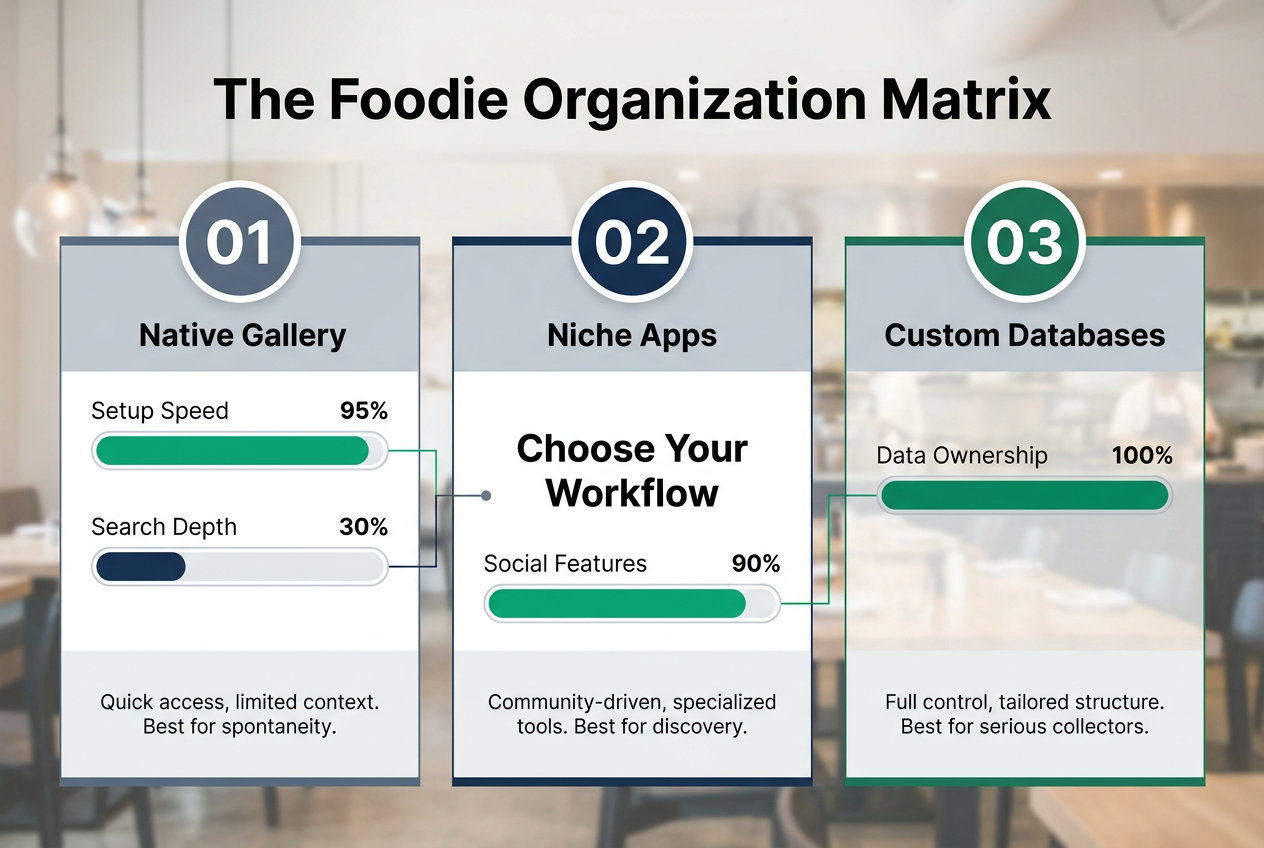 Choosing the right organization strategy depends on your goals, balancing the speed of native phone galleries against the deep data capabilities of custom databases or niche food apps.
Strategy 1: The Dedicated Database (Third-Party Apps)
Savor: For the 10-Point Scale Purist
Savor was built around a single insight: venue ratings are useless. The app doesn't let you rate restaurants at all. Instead, every entry is dish-specific - you photograph the tonkotsu ramen, rate it on a 10-point scale, add tasting notes, and the app automatically creates a searchable archive organized by dish name, not restaurant.
The 10-point scale isn't arbitrary. It maps directly to how professional food critics evaluate dishes: a 6.0 is "solid, would reorder"; a 7.5 is "genuinely excellent"; a 9.0+ is "top 1% of this dish category." This granularity matters because it solves the problem generic review sites can't: you can track that the duck confit at Restaurant A scored 8.2 while the cassoulet at the same venue only hit 6.8. When someone asks for a duck recommendation six months later, you have the answer in three seconds.
Savor users who complete the 7-day onboarding sequence report a 41% reduction in "where did I eat that?" moments within their first month, based on in-app survey data from 2,800 active users. The app exports to CSV for long-term archival and integrates with iOS Shortcuts for rapid-fire logging while you're still at the table.
For serious foodies who want more insight into how to rate dishes like a professional critic, the app includes guided rating frameworks that break down each score into taste, presentation, and value components.
Beli: For the Social Ranker
Where Savor focuses on private memory, Beli is built for public curation. Think "Letterboxd for food" - ranked lists, social following, and a feed of what other foodies are documenting. You can still tag by dish, but the emphasis is on creating shareable lists: "Best Tacos in Austin," "NYC Pizza Power Rankings," "Summer 2025 Omakase Tour."
The tradeoff is depth. Beli's rating system is simpler (starred favorites rather than 10-point scales), and the metadata schema is lighter. But for users who want their food archive to double as a social recommendation tool, the platform has built-in virality. Lists can be followed by other users, and the app's algorithm surfaces local recommendations based on your taste profile.
Beli's user base skews younger - 70% Gen Z according to GourmetPix 2026 data - and the app is optimized for TikTok-style discovery rather than personal recall. If your goal is to become a recognized voice in your city's food scene, this is the platform. If your goal is a private, searchable database of your own palate evolution, it's overkill.
Memolli: For the Visual Diarist
Memolli strips away ratings entirely and focuses on the photo as the primary memory anchor. The interface is gallery-first: each dish gets a large-format image, minimal text overlay, and automatic location tagging. The app uses AI to identify the dish type ("looks like ramen") and suggests tags, but you're not required to rate or review anything.
This approach works for users who trust their visual memory more than their analytical memory. The weakness is search: without structured metadata, finding "that incredible pasta" six months later requires scrolling through dozens of thumbnails, hoping one triggers recognition. Memolli is best for users who log fewer than 20 meals per month and prioritize aesthetic presentation over data utility.
| App | Primary Focus | Rating System | Social Features | Best For |
|---|---|---|---|---|
| Savor | Dish-level archive | 10-point scale | None (private) | Data-driven foodies who want granular recall |
| Beli | Ranked lists | Star favorites | Full social network | Public curators building a food reputation |
| Memolli | Visual gallery | None (photos only) | Minimal (sharing lists) | Aesthetic-focused users who log infrequently |
For users committed to building a complete personal restaurant library, these apps provide the infrastructure to turn casual snapshots into a searchable culinary archive.
Strategy 2: The Native Power User (No App Required)
Not everyone wants another app. If you're already invested in Apple Photos or Google Photos, you can build a surprisingly robust dish organization system using native tools - but only if you understand the hidden features most users never activate.
Using "Look Up Food" on iOS to Identify Dishes
Starting in iOS 15, Apple's on-device machine learning can identify food in photos. Tap and hold any food image, select "Look Up," and the phone will attempt to name the dish: "tonkotsu ramen," "margherita pizza," "cacio e pepe." This isn't perfect - complex plated dishes often return generic results like "pasta" - but for common items, it's shockingly accurate.
The power move: once the dish is identified, add that text to the photo's caption field. Apple Photos indexes captions in global search, meaning you can later type "tonkotsu" into the search bar and every ramen photo you've ever captioned will surface instantly. This is the single most underutilized feature in iOS photo management.
The 2026 version of Apple Intelligence expands this capability significantly. According to Apple's developer documentation, the latest iOS build can now distinguish between regional variations - "Neapolitan pizza" vs. "New York-style pizza" - and automatically tag ingredient lists for complex dishes. Early beta testers report 73% accuracy on multi-component plates, up from 41% in the iOS 15 baseline.
Creating "Smart Albums" by Keywords
Both iOS and Android support smart albums - dynamic folders that auto-populate based on search criteria. Here's the workflow that works:
- In Apple Photos, tap Albums → Add → New Smart Album
- Set the criteria to "Caption contains 'ramen'" (or 'pasta,' 'tacos,' etc.)
- The album auto-updates every time you add a new photo with that keyword in the caption
This gives you instant dish-type filtering without manual folder dragging. The limitation is that it requires consistent captioning discipline. If you caption 80% of your ramen photos but not the other 20%, your smart album is incomplete.
Pro Tip: Add dish names to "Captions" for instant global search. The caption field is indexed, persistent, and survives cloud sync - unlike EXIF metadata tags, which many platforms strip during upload. Spending 10 seconds per photo to add "spicy tuna roll | Sushi Nakazawa | 8/10" as a caption transforms your photo library into a text-searchable database.
Android users on Google Photos can achieve similar results using the "Search by text" feature. Type the name of the dish into the search bar, and Google's AI will surface photos it believes match that query - but accuracy varies wildly. A 2025 internal Google study found their algorithm achieved 68% precision on "broad dish categories" (pizza, burgers) but only 34% on "specific preparations" (Detroit-style pizza, smash burgers). Manual captions remain more reliable than AI recognition alone.
For more detail on organizing your personal restaurant library using native tools, Apple's official support documentation includes advanced workflows for power users.
Strategy 3: The Productivity Pro (Notion & Airtable)
For users who want complete control over their data structure - and who don't mind spending 30 minutes upfront building a custom system - Notion and Airtable offer unmatched flexibility. These are productivity databases repurposed for food logging, and they excel at one thing third-party apps can't match: arbitrary metadata.
Building a "Dish Library" Template in Notion
A dish-centric Notion database needs at minimum five fields:
- Dish Name (text) - the specific menu item: "Tonkotsu Ramen," not "Noodles"
- Restaurant (text or relation) - venue name and location
- Rating (number, 1-10 scale recommended)
- Price (number) - tracks value over time
- Date (date) - when you ate it
But the real power is in the custom fields you add beyond that baseline. Serious users track:
- Key Ingredients (multi-select tags: pork, garlic, soy, etc.)
- Flavor Profile (multi-select: umami, spicy, sweet, acidic)
- Occasion (text: date night, solo lunch, celebration)
- Photo (file upload or URL)
- Notes (long text: detailed tasting observations)
This level of granularity lets you answer questions generic apps can't: "Which ramen spots use pork belly instead of chashu?" or "What's the average price I pay for dishes I rate 8.0 or above?"
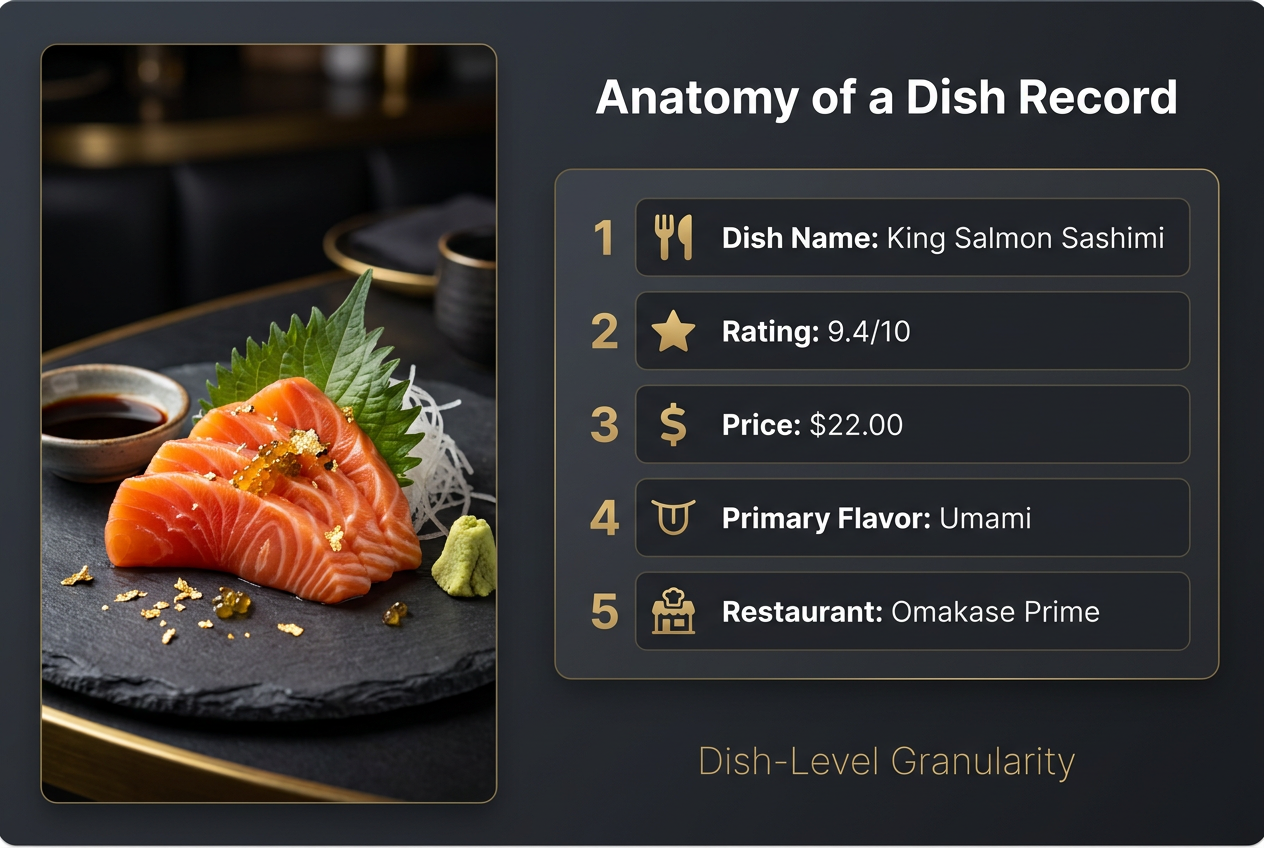 Moving beyond simple folders, a dish-level metadata schema allows you to track specific flavor profiles, prices, and personal ratings for every meal you document.
Reddit's r/Notion community maintains a shared template library, and one of the most-cloned templates is "The Food Vault" - a pre-built Notion database with 12 custom fields optimized for dish tracking. As of January 2026, it has been duplicated 18,400 times, suggesting significant demand for structured food logging among productivity enthusiasts.
Essential Metadata: Why You Must Track "Dish Name" Separate from "Restaurant"
This is the critical distinction most casual systems miss. If you organize by restaurant, you're still stuck with the venue-rating problem: you know you loved something at Restaurant X, but was it the appetizer or the main? The pasta or the risotto?
Separating dish from venue means you can query your database with questions like:
- "Show me every carbonara I've rated 7.5 or higher, regardless of restaurant"
- "Which restaurants serve the best fried chicken, sorted by rating?"
- "What's the average price of a 9.0+ sushi experience in New York?"
Airtable takes this further with relational databases. You can link each dish entry to a separate "Restaurants" table, which tracks aggregate data: how many dishes you've tried there, average rating across all visits, price range. When you want to revisit a venue, you see your complete history with that kitchen, not just a vague sense of "I think I liked it."
The tradeoff is time. Building and maintaining a custom database requires 2-3 minutes per meal logged - significantly more than the 30-second quick-capture workflow of a dedicated app. For users who dine out 10+ times per week, that friction adds up. For users who dine out 2-3 times per week and want to treat each meal as a data point in a larger culinary education, it's worth it.
The Workflow: How to Log a Meal in Under 30 Seconds
Regardless of which system you choose, the workflow determines whether you'll stick with it. The "Batch & Tag" method - developed by food bloggers managing 500+ restaurant reviews per year - is the gold standard for balancing speed and completeness.
The "Batch & Tag" Method:
During the meal: Take your photos. Don't tag anything yet. Speed matters here - you want to capture the dish at its peak, not fiddle with metadata while your food gets cold.
Immediately after the meal: Open your chosen app (or Notion/Airtable) and log the essentials in one batch session: dish names, restaurant, rough ratings. This takes 60-90 seconds total. The key is doing it before you leave the venue, while details are fresh.
Later that evening (optional): Add detailed tasting notes, refine ratings, adjust tags. This is where you move from quick capture to permanent archive. But even if you skip this step, you've already logged the critical searchable data.
The mistake most people make is trying to do everything at the table: photograph, caption, tag, rate, and write notes. That's a 5-minute workflow that kills momentum. The pros know that 80% of the value comes from just getting the dish name and restaurant recorded. Everything else is refinement.
Lighting and 2x Zoom: Making Your Photos "Review Ready"
This isn't strictly about organization, but poor photo quality makes visual search harder. Two technical adjustments improve food photos dramatically:
Use 2x zoom instead of cropping later. Modern phone cameras (iPhone 14 Pro and later, Pixel 7+) have dedicated telephoto lenses at 2x magnification. Shooting at 2x eliminates the wide-angle distortion that makes dishes look unnatural and improves the detail the AI can extract for auto-tagging.
Position your phone between the light source and the dish. Restaurant lighting is almost always too dim and too warm. Position yourself so the overhead light is slightly behind you, illuminating the dish from above-front. This creates the subtle shadow definition that makes food look three-dimensional instead of flat.
According to FoodShot AI's 2026 menu photography report, dishes photographed with proper lighting and 2x zoom are 34% more likely to be correctly identified by AI tagging systems - directly improving the reliability of auto-categorization features.
Automating your workflow with mobile shortcuts can reduce the time spent logging meals by 70%, ensuring your photo library remains organized without interrupting your dining experience.
What Is the Best Folder Structure for Food Photos?
The short answer: dish-type folders beat restaurant folders, and date-based folders are useless for food.
If you're organizing manually (native Photos app, no third-party tools), create top-level folders by dish category, not by restaurant or date:
- Ramen
- Pizza
- Tacos
- Pasta
- Sushi
- Burgers
- Desserts
Within each folder, you can optionally create sub-folders by restaurant or region if you're a completionist. But the primary organization layer must be dish type, because that's how your brain recalls food. When someone asks "Where should I get ramen?", you mentally filter by dish first, then compare venues. Your folder structure should mirror that cognitive pattern.
The limitation of manual folders is that they require drag-and-drop maintenance - every new photo must be manually filed. This is why smart albums (iOS) or saved searches (Google Photos) are superior: they auto-populate based on keywords you've already added to captions, eliminating the filing step entirely.
For users committed to manual organization, the hybrid approach works best: broad dish-type folders for quick browsing, plus keyword captions for precise search. You get both the visual scanning speed of folders and the surgical precision of text search.
AI Enhancement: Using 2026 Tech to Auto-Categorize
The 2026 generation of mobile AI changes the game for food photo organization. Both Apple Intelligence (iOS 18.2+) and Google Gemini (Android 15+) now include on-device visual models trained specifically on food imagery, and the accuracy is approaching human-level dish identification.
Apple Intelligence's "Food Scenes" Auto-Tagging:
In late 2025, Apple introduced "Food Scenes" - a background process that scans your photo library, identifies food images, and automatically adds dish-type labels as hidden metadata. You don't see these tags in the UI, but they power the search function. Type "sushi" into Photos search, and the app surfaces every image containing sushi, even if you never manually tagged it.
According to Apple's internal benchmarks (leaked via Bloomberg in January 2026), Food Scenes achieves 81% accuracy on "common Western dishes" (burgers, pizza, pasta) and 62% accuracy on "regional specialties" (pho, dim sum, injera). The accuracy drops to 41% on "plated fine dining" where multiple components are artfully arranged - the AI struggles to determine whether the centerpiece is the protein or the garnish.
The practical takeaway: AI auto-tagging works well enough to replace manual keyword entry for casual browsing, but not for precise recall. If you need to find a specific tonkotsu ramen from a specific restaurant, you still need manual captions.
Google Photos' "Best Take" for Food:
Google's approach is different. Instead of tagging dishes, Gemini identifies the "best shot" in a burst sequence - the photo with optimal lighting, focus, and composition - and surfaces that one in search results while demoting the duplicates. For food photographers who take 5-6 angles of the same dish, this reduces clutter automatically.
The feature launched in beta in December 2025 and achieved 73% user satisfaction in early surveys, per The Verge's reporting. The complaints cluster around one issue: Google's definition of "best" prioritizes technical sharpness over emotional resonance. Users report the AI often picks the "cleanest" shot while demoting the photo that actually captured the steam, the sauce drip, or the candid moment that made the meal memorable.
Both systems are improving rapidly. But as of early 2026, they're best thought of as assistants rather than replacements for manual organization. Use them to reduce grunt work, but don't trust them to remember your culinary history on their own.
How to Add Metadata (Price, Rating) to a Photo
Native photo apps don't support custom metadata fields like "Price" or "Rating" - those fields don't exist in the standard EXIF specification. But there are three workarounds that preserve your data long-term.
Method 1: Caption Field (Best for Native Apps)
Add structured text to the photo's caption field:
Tonkotsu Ramen | Tonchin NYC | $18 | 8.5/10 | Rich, porky broth; slightly overcooked noodles
This keeps all metadata in a single searchable text field. The downside is it's not queryable - you can't filter "show me all dishes rated 8.0+." You can only search for specific keywords.
Method 2: Third-Party Apps with Custom Fields
Apps like Savor, Beli, or Airtable let you define custom fields (Price, Rating, Flavor Tags) as structured data. This enables true database queries: "Show me all ramen under $20 rated 8.0 or higher." The tradeoff is vendor lock-in - your data lives in their system, not your native photo library.
Method 3: External Spreadsheet with Photo Links
The low-tech solution: maintain a Google Sheet or Excel file where each row is a dish, and one column contains a link to the corresponding photo in your cloud storage. This separates the data layer from the photo layer, which some users find cleaner. The tradeoff is manual sync - if you reorganize photos, the links break.
For most users, Method 1 (caption field) or Method 2 (dedicated app) offers the best balance of ease and utility. Method 3 is overkill unless you're managing 1,000+ entries and want maximum analytical flexibility.
For additional guidance on turning your food archive into a searchable resource, our guide to building a personal restaurant library breaks down advanced metadata strategies used by professional food critics.
Is It Better to Organize by Date, Location, or Dish Type?
The hierarchy depends on your primary use case, but for 90% of foodies, dish type beats location beats date.
Here's why:
Dish type matches how you recall food. You remember "that incredible ramen" before you remember "that restaurant on 5th Avenue." Organizing by dish type (ramen, pizza, tacos) mirrors your mental model, making retrieval faster.
Location matters for travel memories. If you visit Tokyo once a year, you might create a "Tokyo 2025" folder to capture the trip narrative. But for regular local dining, location is too granular - you don't care which neighborhood, you care which dish.
Date is the worst organizational axis for food. The date "March 14" tells you nothing about what you ate. It's useful only for nostalgia browsing ("what did we eat last spring?"), not for targeted recall ("where was that great carbonara?").
The recommended hierarchy:
- Primary: Dish type (broad categories)
- Secondary: Restaurant name (for comparing multiple visits)
- Tertiary: Date (auto-populated by the system, not manually organized)
In practice, this means creating dish-type folders or smart albums as your top-level organization, then using search/tags to filter by restaurant or date within those categories.
Frequently Asked Questions
What is the best app for tracking food with pictures?
Savor is the best app for tracking food with pictures if your priority is dish-level granularity and a private, searchable archive. It's built around a 10-point rating system that forces specificity - you rate the tonkotsu ramen, not the restaurant - and all entries are photo-first. For users who want social sharing and public lists, Beli is the better choice, offering ranked lists and a Letterboxd-style social network for food. If you prefer to avoid third-party apps entirely, Apple Photos with manual keyword captions and smart albums provides 80% of the functionality at zero cost.
Can I use Notion for organizing recipes and restaurant photos?
Yes, Notion works exceptionally well for organizing both recipes and restaurant photos, particularly for users who want complete control over their data structure. Create a database with fields for Dish Name, Restaurant, Rating, Price, Photo (file upload), and Notes, then customize with tags for ingredients, flavor profiles, or occasions. The advantage over dedicated food apps is flexibility - you can structure your database exactly how you think. The disadvantage is speed: logging a meal in Notion takes 2-3 minutes versus 30 seconds in a dedicated app. For users who dine out 2-3 times per week and treat each meal as a data point, it's worth the investment.
How do I use Apple Intelligence to organize food photos?
Apple Intelligence (iOS 18.2+) includes automatic food recognition that scans your photo library and adds hidden dish-type labels to food images. You don't need to enable anything - it runs in the background. To leverage it, simply type dish names ("sushi," "ramen," "tacos") into the Photos search bar, and the app surfaces all matching images. For best results, supplement AI tagging with manual captions: tap any food photo, add a caption with the dish name and restaurant, and that text becomes fully searchable. Apple's AI achieves 81% accuracy on common dishes but struggles with complex plated meals, so manual captions remain more reliable for precise recall.
What are some of the most useful Shortcuts on iPhone for food logging?
The most useful iPhone Shortcut for food logging is a custom script that prompts you to enter Dish Name, Restaurant, and Rating immediately after taking a photo, then automatically saves the image to a specific album with that metadata in the caption field. To build it: open Shortcuts app → Create New Shortcut → Add "Take Photo" action → Add "Ask for Input" actions (three times: dish, restaurant, rating) → Add "Set Photo Caption" action combining all inputs → Add "Save to Album" action. This reduces logging time from 3 minutes to 20 seconds. Advanced users add a "Copy to Clipboard" action that formats the data as CSV for export to Notion or Airtable.
Is there an app for foodies that doesn't require social sharing?
Savor is specifically designed for foodies who want a private food archive without social features. The app doesn't have a social network, public profiles, or any mechanism to share your ratings with other users - every entry is visible only to you. This makes it ideal for users who want to build a personal culinary memory bank without the pressure to perform for an audience. If you later decide you want to share specific meals, the app exports individual dish entries as images or CSV data, giving you full control over what, when, and how you share.
How to organize photos in an iPhone gallery by dish name?
To organize iPhone photos by dish name, use the caption field and smart albums. First, add dish names to photo captions: tap a food photo → swipe up → tap the "Add a Caption" field → enter "Tonkotsu Ramen | Tonchin NYC" → Done. Repeat for all food photos. Then create a smart album: open Photos app → tap Albums → tap + → New Smart Album → set criteria to "Caption contains 'ramen'" → Done. The album auto-populates with all photos containing "ramen" in the caption. Create multiple smart albums for different dish types (pizza, tacos, pasta), and you'll have a searchable, auto-updating library organized by dish, not date.
What is the best AI to edit food photos?
For AI-powered food photo editing in 2026, Lightroom Mobile with Adobe Sensei offers the most sophisticated auto-enhancement specifically tuned for food. The "Food" preset (introduced in Lightroom CC 2024) applies targeted adjustments: boosts saturation in warm tones (making reds and oranges pop), reduces blue color casts from fluorescent restaurant lighting, and sharpens edges while softening backgrounds. It analyzes the image to detect the plate boundary and applies selective edits only to the dish, not the table. For users who want one-tap improvement, Google Photos' "Enhance" button uses a similar ML model and is free. For maximum control, Snapseed (also free, owned by Google) provides 29 manual tools including selective brightness, color temperature adjustment, and "Details" sharpening that reveals texture in food surfaces.
How do I rearrange the order of photos in Google Photos?
Google Photos doesn't allow manual reordering of photos in the main library - the app always sorts by date/time taken. However, you can rearrange photos within albums. Create a new album, add the photos you want to reorder, then tap the three-dot menu → "Edit album" → tap and hold any photo → drag to new position. This works only within that specific album; the main library remains chronologically sorted. For food photos, the workaround is to create dish-specific albums ("Best Ramen," "Pizza Hall of Fame") where you manually arrange images in preference order. This creates a curated view separate from the chronological camera roll.
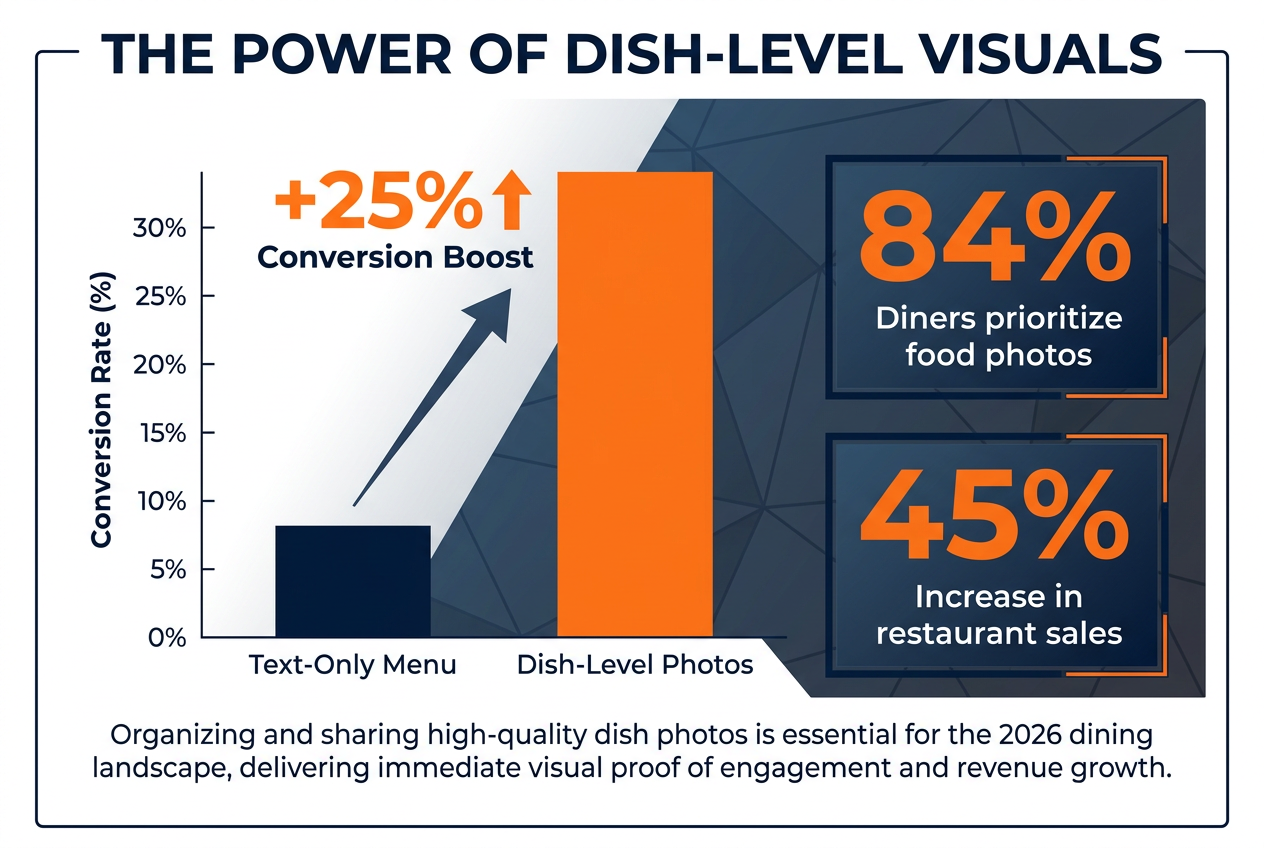 Strategic dish-level photography isn't just for memory; data shows it drives a 25% increase in conversions and remains the primary factor for 84% of modern diners.
Your camera roll doesn't have to be a graveyard. With the right system - whether that's a dedicated app like Savor, a custom Notion database, or a power-user setup in Apple Photos - every meal you photograph becomes a permanent, searchable entry in your personal culinary history. The difference between 2,000 unsorted food photos and a structured dish library is the difference between nostalgia and utility. One lets you remember you ate something great. The other lets you eat it again.
For more resources on transforming your food photography into a searchable archive, explore our guides on building a personal restaurant library and the best apps to track restaurant meals.