
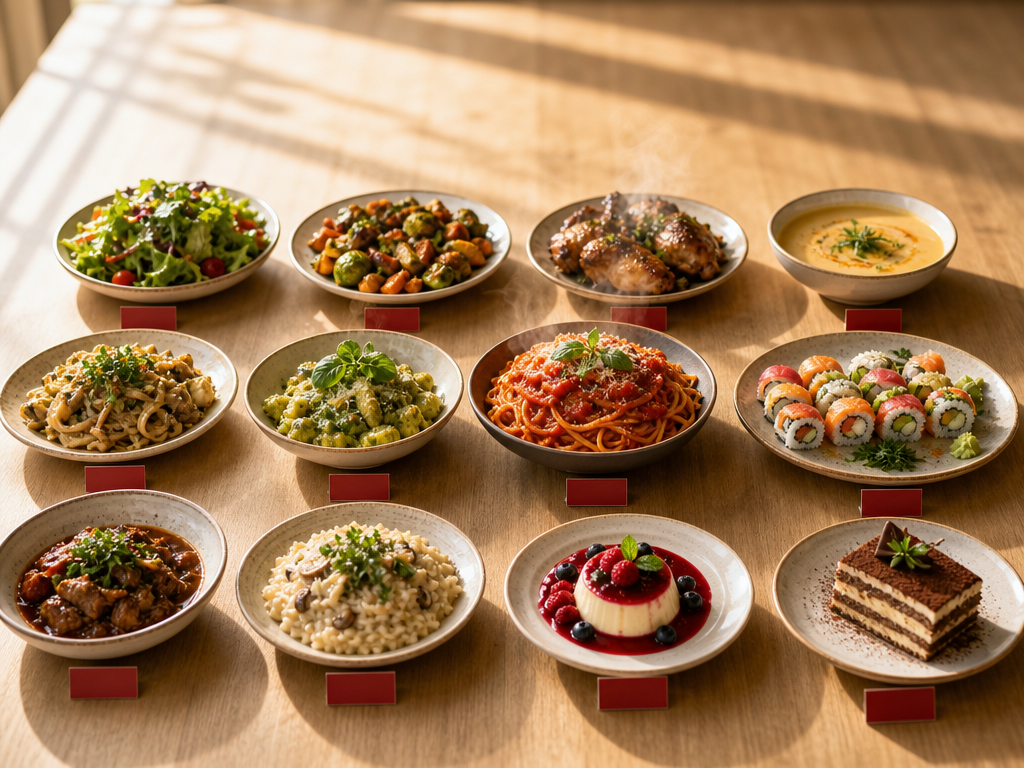
How to Organize Food Pictures by Dish Type: A Complete System for Foodies
John the smoothie monster
John lives for smoothie bowls and cold-pressed juices. He uses Savor to remember his best blends.
How to Organize Food Pictures by Dish Type: A Complete System for the Serious Foodie You took a photo of an extraordinary pasta three months ago. You remember...
How to Organize Food Pictures by Dish Type: A Complete System for the Serious Foodie
You took a photo of an extraordinary pasta three months ago. You remember the silky texture, the perfect heat, the way the black pepper coating transformed ordinary cacio e pepe into something transcendent. But what restaurant was it? Which neighborhood? What was the exact dish name?
Your camera roll holds 2,847 food photos. Somewhere in that digital graveyard is that perfect bowl of ramen, that life-changing taco, that dessert that made you reconsider what pastry could be. But finding them requires scrolling through your cousin's wedding photos, screenshots of receipts, and seventeen nearly identical shots of latte art.
The core problem isn't that you don't take enough photos. It's that you've never built a retrieval system. You're archiving without indexing. Collecting without cataloging. And three years from now, when someone asks for your best Italian spot, you'll stand there, vaguely gesturing at your phone, unable to produce evidence.
This guide provides a complete taxonomy system and technical workflow for organizing food pictures by dish type - not as a hobby project, but as a searchable culinary database you'll actually use.
Table of Contents
- Why Your Camera Roll Alone Isn't Enough
- The Smart Foodie Taxonomy: A Four-Tier System
- Level 1: The Lazy Log (Native AI Search)
- Level 2: The Power User (Metadata and Captions)
- Level 3: The Archivist (Third-Party Food Apps)
- The Dish Type Taxonomy Template
- How to Create Smart Albums That Update Automatically
- The Quick-Share Strategy: Building Your Personal Recommendation Engine
- Frequently Asked Questions
Why Your Camera Roll Alone Isn't Enough
Your phone's native Photos app organizes by date and location. That's useful if you remember when you ate something or where the restaurant was. But when you're trying to answer "Where was that incredible uni pasta?" or "What did we order last time at this bistro?", chronology doesn't help.
The typical foodie workflow looks like this:
- Take 3-7 photos of a dish
- Maybe add it to a favorites folder
- Forget the restaurant name by next week
- Scroll desperately through thousands of images months later
- Give up and just pick a new restaurant
This system fails because it confuses capture with organization. A great photo is evidence of a great meal. But without context - dish name, restaurant, your actual opinion - it's just a pretty picture.
The solution isn't taking fewer photos. It's building a system that treats your camera roll like a database instead of a junk drawer.
The Smart Foodie Taxonomy: A Four-Tier System
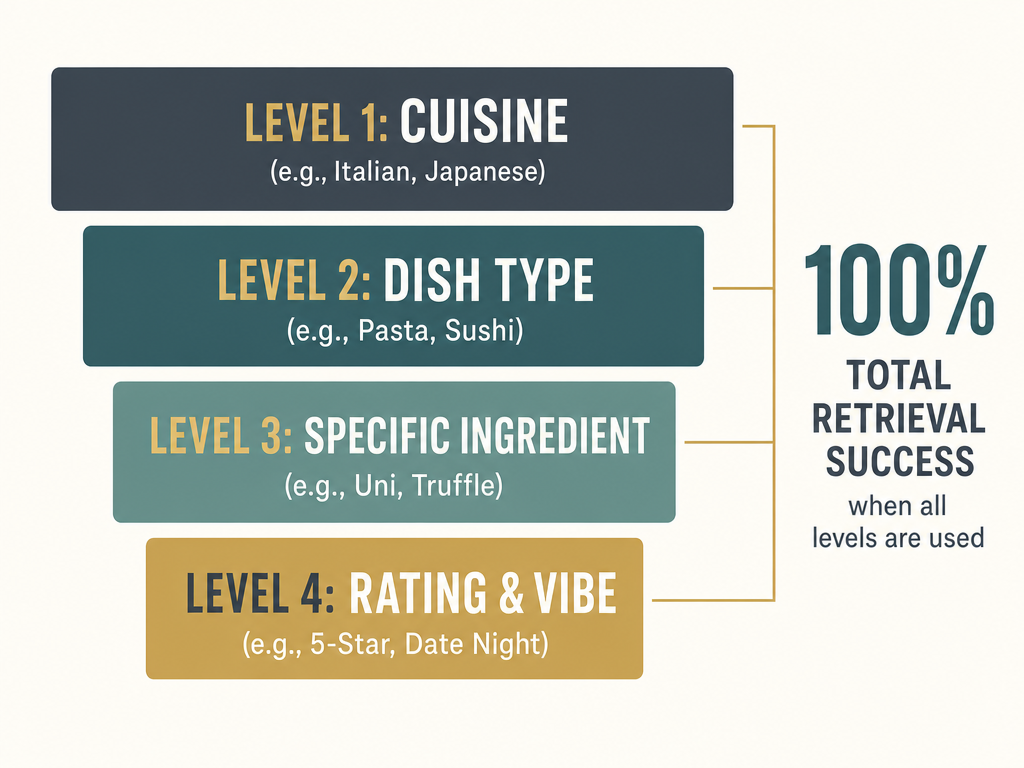
Before you touch any app or album, you need a classification framework. Think of it as your personal Dewey Decimal System for food.
Tier 1: Cuisine Type
Broad geographic or cultural category: Italian, Japanese, Mexican, French, Middle Eastern. This is your first filter. When someone asks "What's your favorite Thai place?", you want every Thai dish you've photographed to surface immediately.
Tier 2: Dish Type
The structural category: Pasta, Sushi, Tacos, Small Plates, Mains, Desserts, Street Food. This is where most people stop - and where the system starts getting useful.
Tier 3: Specific Preparation or Ingredient
The distinguishing detail: Carbonara vs. Cacio e Pepe. Nigiri vs. Maki. Birria vs. Al Pastor. This level separates casual eaters from serious foodies.
Tier 4: Personal Rating or Context
Your editorial layer: "Must-Order," "Worth the Trip," "Skip It," "Bring First-Time Visitors." This transforms a photo collection into a recommendation engine.
Most food photo apps stop at Tier 1 or 2. The serious foodie operates at Tiers 3 and 4, because that's where the actual decision-making value lives.
If you're ready to move beyond generic organization and start tracking your favorite dishes with precision, your taxonomy becomes your most powerful tool.
Level 1: The Lazy Log (Native AI Search)
If you want zero-effort organization, modern smartphone AI can handle basic dish recognition without any manual work from you.
Apple Photos: Visual Look Up
Starting with iOS 17, Apple's Visual Look Up feature can identify food in photos and suggest related recipes or information. It's built directly into the Photos app - no downloads needed.
How to use it:
- Open any food photo in Apple Photos
- Tap and hold on the dish itself
- If Visual Look Up recognizes the food, you'll see a sparkle icon
- Tap "Look Up" to see food type, related recipes, or cultural context
What it's good for: Quick identification of common dishes (pizza, sushi, pasta). If you've completely forgotten what something was, Visual Look Up can jog your memory.
Limitations: It can recognize "pizza," but it won't distinguish between Neapolitan and New York style. It has no memory of which dishes you've rated highly or which restaurants you want to revisit. It's a parlor trick, not a database.
Google Photos: Ask Photos and Conversational Search
Google Photos introduced Gemini-powered conversational search, marketed as "Ask Photos." You can literally type questions like "What did I eat on my trip to Barcelona?" and it'll surface relevant images.
How to use it:
- Open Google Photos
- Tap the search bar
- Type conversational queries: "Show me all sushi," "Pasta from last month," "Food from Italy 2024"
- Google's AI will attempt to interpret and deliver results
What it's good for: Pulling up food photos by broad category (all pasta, all desserts) or combining food type with location/date filters.
Limitations: Like Apple, it's great at identifying what something is but terrible at remembering why you cared. It can't tell you which sushi was the one you'd drive an hour to eat again.
For a deeper look at how these native tools stack up against dedicated apps, explore our guide to the best apps to organize food photos by restaurant.
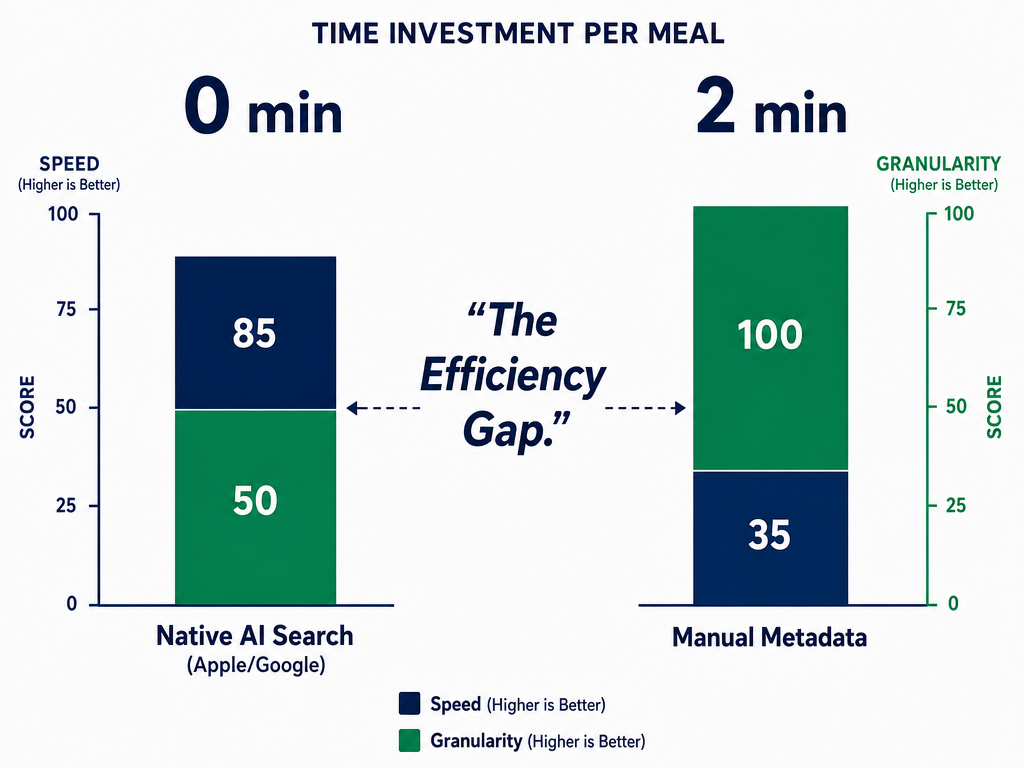
Level 2: The Power User (Metadata and Captions)
Native AI is convenient, but it's passive. You're trusting an algorithm that's never tasted anything. Level 2 means taking control by adding your own context - turning photos into searchable records.
The Caption Field: Your Secret Weapon
Both iPhone and Android have a "caption" or "description" field for every photo. Most people ignore it. You're going to weaponize it.
Here's the workflow:
- Immediately after taking a food photo, tap "Edit" (iPhone) or the pencil icon (Android)
- Add a caption using this format:
[Restaurant Name] - [Dish Type] - [Specific Name] - [Quick Rating/Note] - Example:
Frankies 457 - Pasta - Cacio e Pepe - Perfect heat, best in NYC
Now when you search your Photos app for "Cacio e Pepe" or "Frankies," that image surfaces instantly.
Use Quotation Marks for Exact Match Tags
If you want to create custom categories like "Must-Order" or "Worth the Trip," add them in quotes within your captions: "Must-Order". Later, you can search your entire photo library for that exact phrase.
This is especially powerful for:
- Personal ratings: "5-Star", "Skip-It", "Good-Not-Great"
- Context tags: "Date-Night", "Group-Friendly", "Solo-Dining"
- Ingredients you track: "Uni", "Dry-Aged", "House-Made-Pasta"
The 10-Second Rule
The only way this system works is if you actually do it. Set a rule: before you put your phone down after taking a food photo, spend 10 seconds adding the caption. It feels tedious the first five times. By the tenth, it's automatic.
If you're curious about how serious foodies build review systems that actually work, our guide to organizing food reviews offers a framework for turning photos into decisions.
Google Photos: Description Field and Manual Labels
On Android, the equivalent workflow uses the "Description" field:
- Open a photo in Google Photos
- Swipe up to see details
- Tap "Add a description"
- Use the same format:
[Restaurant] - [Dish Type] - [Name] - [Notes]
Google Photos also lets you create manual labels by selecting multiple images and adding them to an album. But albums are static - once you leave the restaurant district, you won't remember to revisit and reorganize. Captions are searchable forever.
Level 3: The Archivist (Third-Party Food Apps)
If you're ready to move beyond your camera roll entirely, dedicated food tracking apps provide structure, automation, and social sharing features that native photo apps can't match.
Savor: Dish-Level Tracking for Foodies
Unlike most restaurant apps that organize by venue, Savor organizes by individual dishes. You're not reviewing "Frankies 457" - you're rating that specific Cacio e Pepe. The app uses a structured framework: taste, technique, ingredient quality, presentation.
Key features:
- Dish-level ratings with detailed tasting notes
- Personal flavor profile matching
- Private sharing lists (no public reviews, no algorithmic feed)
- Smart albums that auto-organize by cuisine, dish type, or rating
Best for: Serious foodies who view dining as a craft worth documenting, not just a social media flex.
Yummi: Foodprint Maps and Location-First Logging
Yummi is built around a visual map of your dining history. Every meal you log appears as a pin on your personal "Foodprint." It's less about detailed critiques and more about geographic memory.
Key features:
- Map view of every place you've eaten
- Quick photo uploads with minimal text entry
- Integration with Apple Maps and Google Maps for easy restaurant lookup
Best for: Travelers who want a visual record of where they've eaten, organized by city or trip.
Food Photo Log: Simple Chronological Diary
This barebones app does one thing: it creates a chronological feed of your food photos with basic notes. No maps, no social features, no algorithmic sorting.
Best for: Minimalists who just want a cleaner, food-only version of their camera roll without extra features.
For a broader look at how these apps compare to traditional restaurant review platforms, check out our analysis of the best food review apps.
The Dish Type Taxonomy Template
Here's a copy-paste taxonomy you can use immediately for tags, captions, or app labels. Adapt it to your personal eating style - add or remove categories as needed.
By Structure:
- Small Plates / Appetizers
- Soups / Stews
- Salads / Raw
- Pasta / Noodles
- Rice / Grain Bowls
- Mains / Entrees
- Street / Handheld
- Sweet / Dessert
By Cuisine:
- Italian
- Japanese
- Mexican
- French
- Chinese
- Indian
- Middle Eastern
- American / New American
- Southeast Asian (Thai, Vietnamese, etc.)
By Context:
- Fine Dining
- Casual / Neighborhood
- Street Food
- Home Cooking
- Special Occasion
By Personal Verdict:
- Must-Order
- Worth the Trip
- Good-Not-Great
- Skip It
- Bring First-Time Visitors
- Solo-Dining Favorite
You don't need to use all of these. Pick 10-15 categories that match how you actually search for food.
For a real-world example of how professionals organize their food archives, explore how our users have built personal restaurant libraries using these exact principles.
How to Create Smart Albums That Update Automatically
If you're using Apple Photos or Google Photos, smart albums (or automated collections) can pull together specific dish types without manual sorting every time.
iPhone: Smart Albums via Shortcuts
Apple Photos doesn't have built-in smart albums for text-based searches, but you can create a workaround using the Shortcuts app:
- Open Shortcuts
- Create a new shortcut: "Find All Pasta"
- Add action: "Find Photos" → Where "Caption contains 'Pasta'"
- Add action: "Show Result"
Now, whenever you run that shortcut, it instantly pulls every photo you've captioned with "Pasta." Create separate shortcuts for each dish type you track regularly.
Google Photos: Search-Based Collections
Google Photos makes this easier. Simply search for a term like "Tacos" or "Ramen," then tap the three-dot menu and select "Save search." This creates a persistent collection that automatically updates as you add new photos matching that term.
This is especially useful if you're using the best apps to track restaurant meals and want to keep everything in one place.
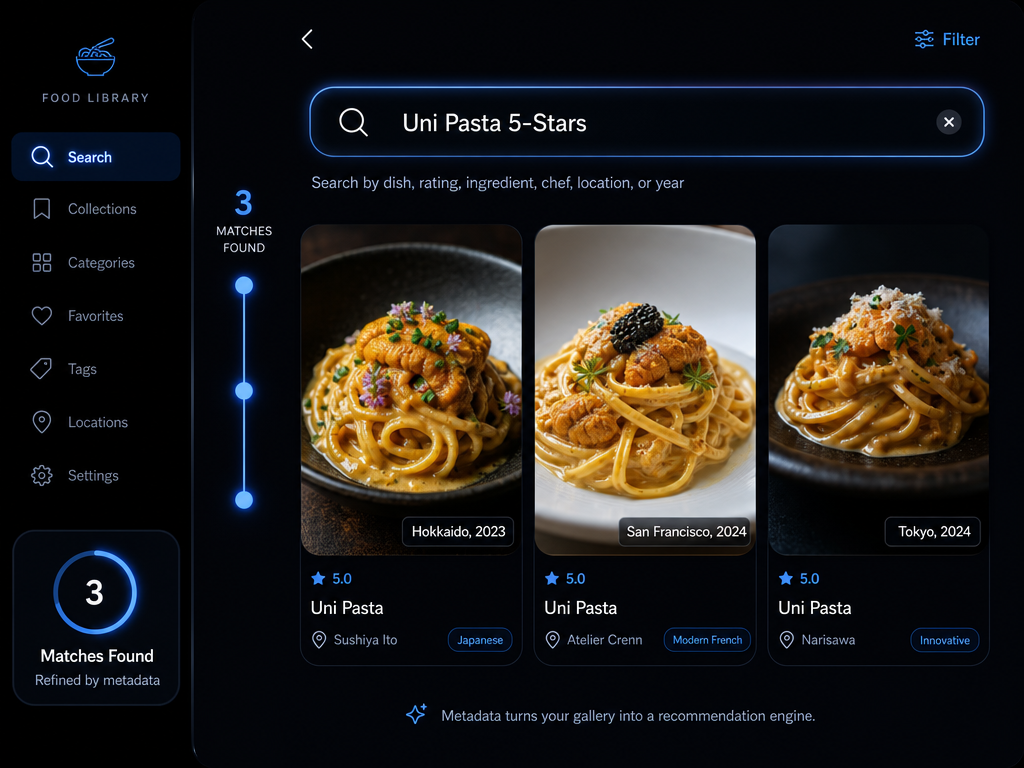
The Quick-Share Strategy: Building Your Personal Recommendation Engine
The ultimate goal of organizing food photos isn't just personal memory - it's instant retrieval for recommendations. When a friend asks "What's your favorite ramen place?", you want to pull up a curated list in five seconds, not scroll through 800 photos.
Create "Best Of" Albums
Once you've tagged your photos, create manual albums (or use smart albums) for high-frequency recommendation categories:
- Top 10 Pasta
- Best Pizza (By Style)
- Ramen Worth the Trip
- Date Night Essentials
- Vegetarian Favorites
Populate these albums with only your highest-rated dishes. Update them quarterly. Now when someone asks for a recommendation, you're not guessing - you're consulting your archive.
Use the "Favorites" Star for Quick Access
Both Apple and Google Photos have a "Favorites" or "Star" feature. Reserve this for dishes you'd genuinely reorder or restaurants you'd revisit without hesitation. Your Favorites album becomes your personal greatest hits.
Share Albums with Context
When you recommend a restaurant to a friend, don't just text them the name. Share the album of your favorite dishes from that spot. Include captions with specific orders: "Get the Margherita, skip the arancini, their tiramisu is the best version in the city."
This level of specificity is what separates a casual suggestion from a trusted culinary endorsement.
If you're looking to refine your personal rating methodology, our food reviews tracking guide walks through building frameworks that match your actual decision-making process.
Frequently Asked Questions
Can I use my iPhone camera to identify objects automatically?
Yes. iOS 17+ Visual Look Up can identify food in photos and suggest related recipes or information. Tap and hold on a dish in any photo to activate the feature. It's useful for basic recognition (pizza, sushi, pasta), but it won't distinguish between regional styles or remember which dishes you've rated highly. For that level of detail, you need manual tagging or a dedicated food tracking app.
How do I categorize photos in Google Photos?
Google Photos uses AI-powered search combined with manual organization tools. Google Photos "Ask Photos" (Gemini-powered) allows conversational queries like "What did I eat on my trip to Barcelona?" You can also add descriptions to individual photos, create manual albums, or save specific searches as collections that automatically update. For dish-type organization, add detailed descriptions to each food photo, then use search terms like "Pasta" or "Ramen" to filter your library instantly.
What is the best app for food photography if I want to organize by dish type?
The best app depends on whether you prioritize passive AI organization or active manual control. Native tools (Apple Photos, Google Photos) offer convenient AI-based search but lack culinary specificity. Dedicated apps like Savor organize by individual dishes rather than restaurants, allowing you to rate specific preparations (Carbonara vs. Cacio e Pepe) and build searchable archives. Third-party options like Yummi focus on map-based logging. If you want a system that treats dining as a craft worth documenting - not just a photo opportunity - look for apps that allow dish-level ratings, detailed tasting notes, and private recommendation lists. For more options, check out our guide to the best food spotting apps.
How can I search Google Photos by specific food types?
Use the search bar at the top of Google Photos and type the food category: "Pizza," "Sushi," "Tacos," "Desserts." Google's AI will attempt to surface relevant images automatically. For more precision, add descriptions to your food photos manually, then search for those exact terms. You can also combine food types with location or date filters: "Pasta from Italy 2024" or "Ramen from last month." To save recurring searches, tap the three-dot menu after searching and select "Save search," which creates a persistent collection that updates automatically as you add new matching photos.
Do I need a separate app to organize food photos, or can I just use my camera roll?
You can organize food photos using only your native camera roll if you're willing to add manual context. Use the caption or description field for every food photo, including restaurant name, dish type, specific preparation, and personal notes. This makes your photos searchable by keyword. Create albums or smart searches for frequent categories (pasta, sushi, desserts). The limitation is that native photo apps don't understand culinary context - they can't tell you which sushi was the one you'd drive an hour to eat again. Dedicated food apps provide structured frameworks for ratings, flavor profiles, and recommendation lists. If you eat out frequently or travel for food, a dedicated app transforms your photo collection from a junk drawer into a searchable database.
How do I actually remember which dishes I ordered at restaurants months later?
Add context immediately after taking the photo. Use the caption field in your camera roll or a dedicated food tracking app to record: restaurant name, dish name, key ingredients, and a quick verdict ("Perfect heat, best in NYC"). If you wait until later, you'll forget. The 10-second rule: before you put your phone down, add the caption. Over time, this creates a searchable archive. When you return to a restaurant months later, search your photo library for that restaurant's name and instantly see everything you've ordered, along with your notes on what was exceptional and what to skip.
What are the best practices for tagging photos so I can find specific dishes later?
Use consistent, searchable language in captions or tags. Format: [Restaurant Name] - [Dish Type] - [Specific Name] - [Quick Rating/Note]. Example: "Frankies 457 - Pasta - Cacio e Pepe - Perfect heat, best in NYC." Use quotation marks for custom categories: "Must-Order", "Worth the Trip", "Skip-It". Tag by cuisine (Italian, Japanese), structure (Small Plates, Mains, Desserts), and personal verdict. Create a taxonomy before you start - pick 10-15 categories that match how you actually search for food. The key is immediate tagging. If you wait, you'll forget what made a dish special, and your photo becomes decorative instead of functional.
How do I organize recipes by category in my phone?
If you're organizing saved recipes (not restaurant photos), use a dedicated recipe app like Paprika or Whisk. These apps let you import recipes from websites, add manual entries, and organize by meal type, cuisine, or custom tags. For photos of recipes you've cooked or want to recreate, use the same caption workflow as food photos: add dish name, cuisine type, and any notes about technique or ingredients. If you're tracking restaurant dishes you want to recreate at home, consider using an app that allows both recipe storage and dining logs. For a comprehensive look at organizing your culinary life, explore our guide to the best food software.
Your camera roll doesn't have to be a graveyard. With a clear taxonomy, consistent tagging, and the right tools - whether native AI, manual captions, or dedicated apps - you can transform thousands of food photos into a searchable, shareable, decision-ready culinary database. The next time someone asks for a recommendation, you won't vaguely gesture at your phone. You'll pull up your archive and say: "Here's exactly what to order."